
This guide teaches you how to read the Home Depot weekly ad so you can tell, at a glance, whether a listed price applies to your store, your ZIP code, or online only. You’ll learn to interpret sale dates, the small icons that matter, product code patterns, and the fine print that usually hides exclusions.
Scope Boundary: This guide focuses only on reading and interpreting the Home Depot weekly sale ad; for current coupons, promo codes, and stacking rules see the main weekly-ad hub.
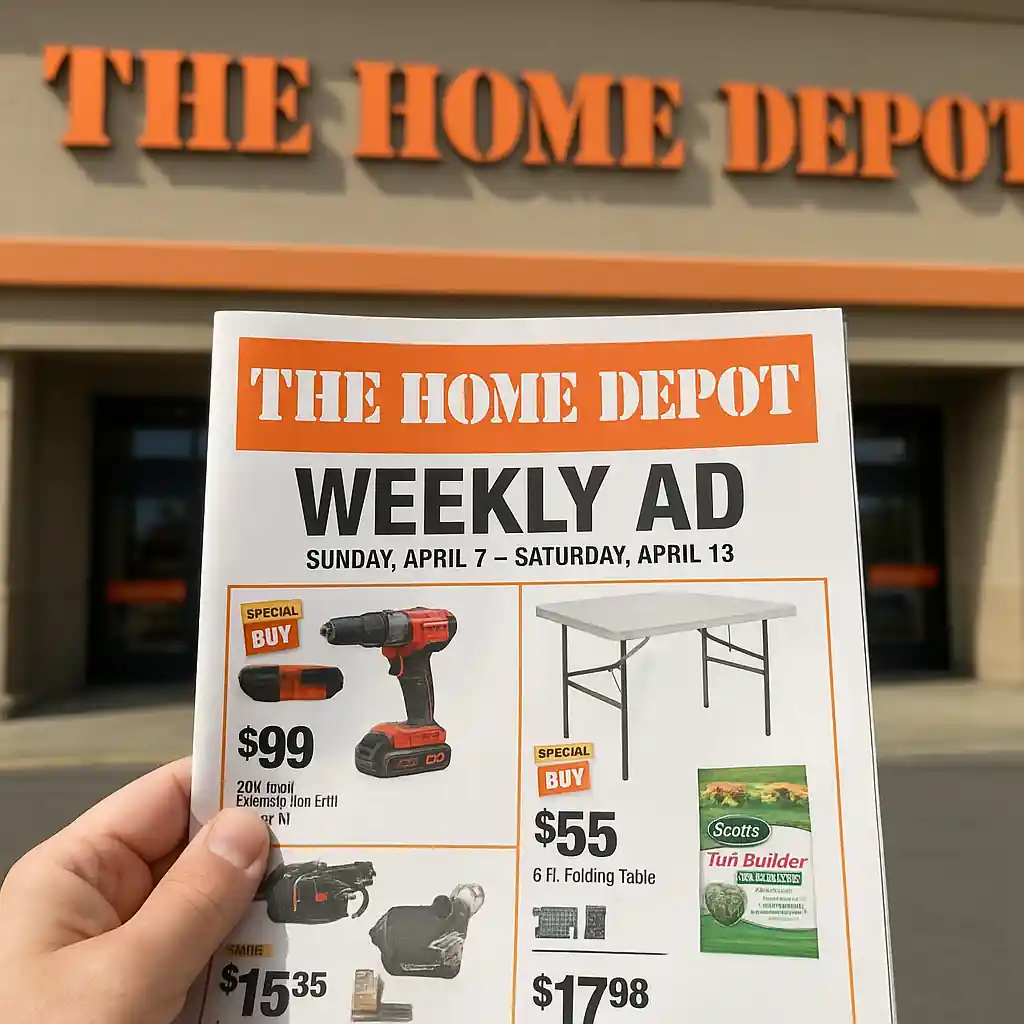
Quick Checklist
- Confirm the ad’s sale range dates (start and end dates) before planning purchases.
- Look for small icons that indicate “online only,” “store only,” or “local special.”
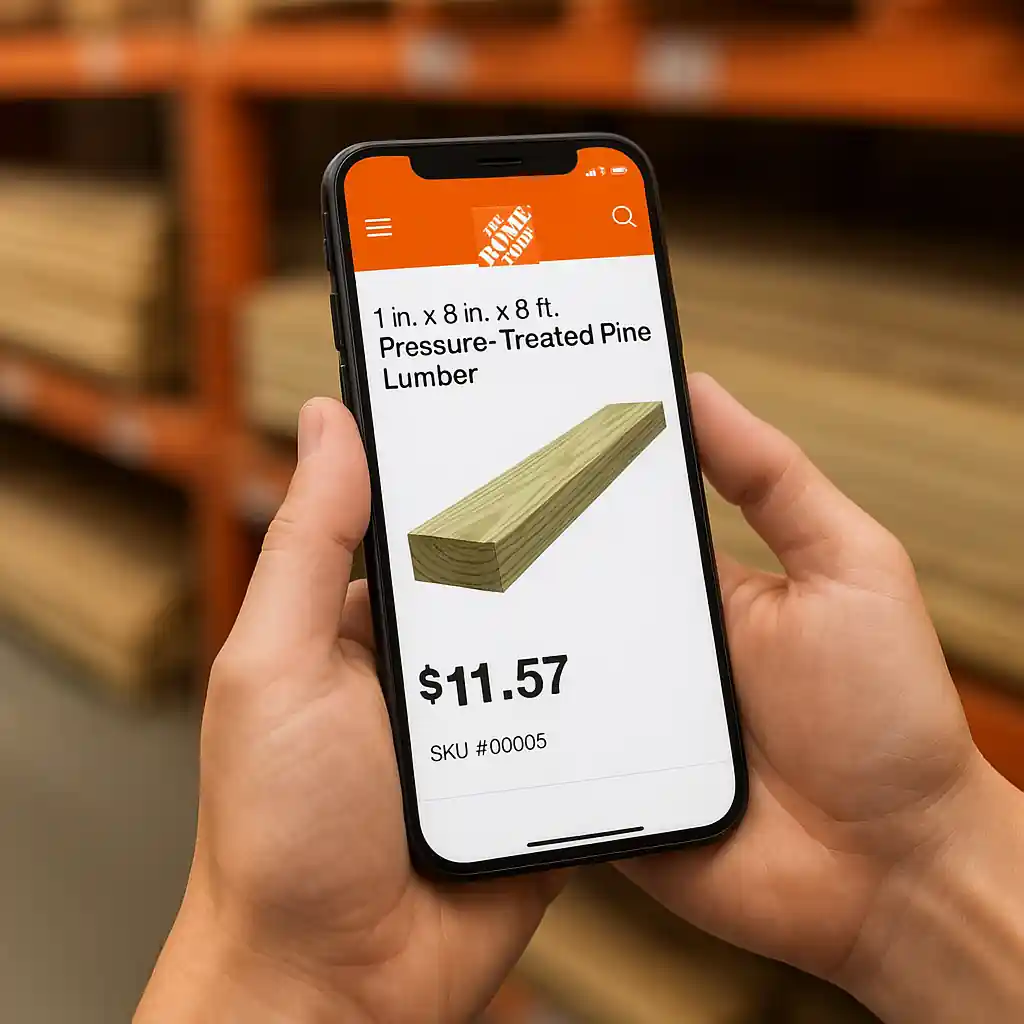
- Match the item’s SKU or model number in the ad to the store or product page.
- Read the fine-print block for exclusions, minimum purchase rules, and delivery limits.
- Verify whether the price is local (ZIP-coded) or national before assuming stock is available.
- Check whether accessory items, installation, or extended warranties are excluded.
- Take a photo or screenshot of the ad page to show at checkout if needed.
- Use the store’s product page or app barcode scan to confirm the sale price in-store.
Deep Dive: Sale Dates and What They Mean
The most common misread on a weekly ad is the sale date range. Home Depot typically shows a clear header with the ad’s effective dates. If you see a single day listed, that often represents a doorbuster or a one-day special; a two-line date range means the offer runs for the whole period. Note that some online deals preview before the in-store sale begins.
How to interpret date labels
- Start—End (full range): Price should be valid for the entire period unless a smaller callout states otherwise.
- Limited-time / One day: Check the small print for time-of-day limits (e.g., “doorbuster starts 8am”).
- Preview or Next Week: Indicates the ad is an early look; stock and prices can still change.
Action tip: Always cross-check the ad header date against the product block. The product block sometimes carries an additional note like “Online price only through Sunday.”
Deep Dive: Icons, Labels, and Local vs National Prices
The ad uses a handful of small icons and labels to show where a deal applies. Those icons are tiny but critical.
- Computer or “Online” icon: Price applies on HomeDepot.com only. In-store registers may not accept it without a printed coupon.
- Store pin / local icon: The deal is a local special and may vary by ZIP code or store. Inventory can differ even between nearby stores.
- Limited quantity or clock icon: Indicates a limited stock or time-limited event; expect faster sellouts.
- Package or bundle badge: Price applies only when purchased as the advertised bundle, not individually.
Step-by-step flow: Confirming a price applies to you
- Find the product block in the ad and copy the SKU or model number.
- Look for any icon next to the price; note if it says “online” or lists a store code.
- Open the Home Depot app or website and search the SKU; if the online price matches, it’s likely an online offer.
- If the ad shows a local icon, enter your ZIP on the product page to check local pricing and stock.

Deep Dive: Product Codes, SKUs, and Decoding the Grid
The small alphanumeric codes beneath an ad item are not decorative. They are SKU, UPC, and model identifiers that let you match ad copy to actual inventory. Ad copy sometimes shortens a model number; matching the full SKU reduces confusion at checkout.
Reading a product block
- Model number: Usually a brand’s code (e.g., X1234). Use this to search the site or ask an associate.
- Home Depot SKU: A numeric code unique to Home Depot; searching the SKU in the app returns the exact item.
- Package details: Look for “Includes” lines that show what is and isn’t covered by the sale price.
Example: an ad listing shows “Model: HDX-3000 | SKU: 123456” and a small “online” icon. Searching SKU 123456 on the website will reveal whether the price is applied in-store or online and list excluded accessories if any.
Deep Dive: Fine Print and Typical Exclusions
Fine print is the place where exceptions live. Home Depot’s weekly ad will usually have a block (often at the bottom or in a thin column) that lists standard exclusions and special rules. Read it before you commit to a large purchase.
- Common exclusions: gift cards, extended service plans, installation, sales tax, and some major appliances.
- Minimum purchase requirements: a discount might require buying multiple units or a qualifying item.
- Delivery and installation: sale prices may exclude delivery fees or professional installation costs.
- Price adjustments: notes on price-match or adjustment windows (if offered) will appear here.
Practical check: If you plan to combine a sale item with a coupon or a Pro Xtra benefit, verify the fine print. The ad may explicitly state “Cannot be combined with other offers.”
Common Mistakes
- Assuming an ad price is available at every store. Local icons often mean ZIP-based pricing; call your store before driving there.
- Overlooking the small online icon and expecting the in-store register to apply the same price without proof.
- Using the partial model number in the ad to search and matching the wrong variant (color or capacity) at checkout.
- Skipping the fine print and ignoring exclusions like installation, delivery, or bundled requirements.
- Failing to photograph or save the ad page when a checkout price differs; visual proof speeds resolution with customer service.
- Mistaking a preview or “next week” label for a current offer and assuming current stock exists today.
- Expecting coupons or loyalty discounts to automatically apply to ad prices when the fine print disallows stacking.
- Not confirming SKU matches: two items with similar names can have different sale statuses or exclusions.

Related Guides
- Home Depot weekly sale ad — The hub guide with the full context on how weekly ads and site-wide promos interact.
- Find the Home Depot weekly sale ad online — A short guide on where and how to pull the latest ad for your ZIP code.
- Combine weekly ad deals with coupons — Tips for stacking coupons and ad prices when allowed.
Conclusion
Reading the Home Depot weekly ad accurately saves time and reduces surprises at checkout. Focus on the ad dates, the small icons that indicate where a price applies, and the SKU/model information so you can verify inventory and price online or in the app. When in doubt, capture the ad screen and call your local store with the SKU to confirm stock and price.
Next step: check the hub guide for the weekly ad to compare the ad details to current coupons and stacking rules at Home Depot weekly sale ad.
Editor’s note: For the main hub guide and related updates on how to read home depot’s weekly sale ad: dates, icons, and fine print, see this overview.