
This guide explains why a Home Depot penny deal sometimes shows as $0.01 in your cart but reverts to full price at checkout, and how to fix it quickly. You’ll get clear troubleshooting steps, the policy and technical causes that trigger price resets, and the right way to ask Home Depot for a manual adjustment when necessary.
Scope Boundary: This guide focuses on why the penny-priced item changes during checkout and practical fixes; for the full list of current penny items, general penny-hunting tactics, or broader coupon strategies see our main hub guide linked in Related Guides.
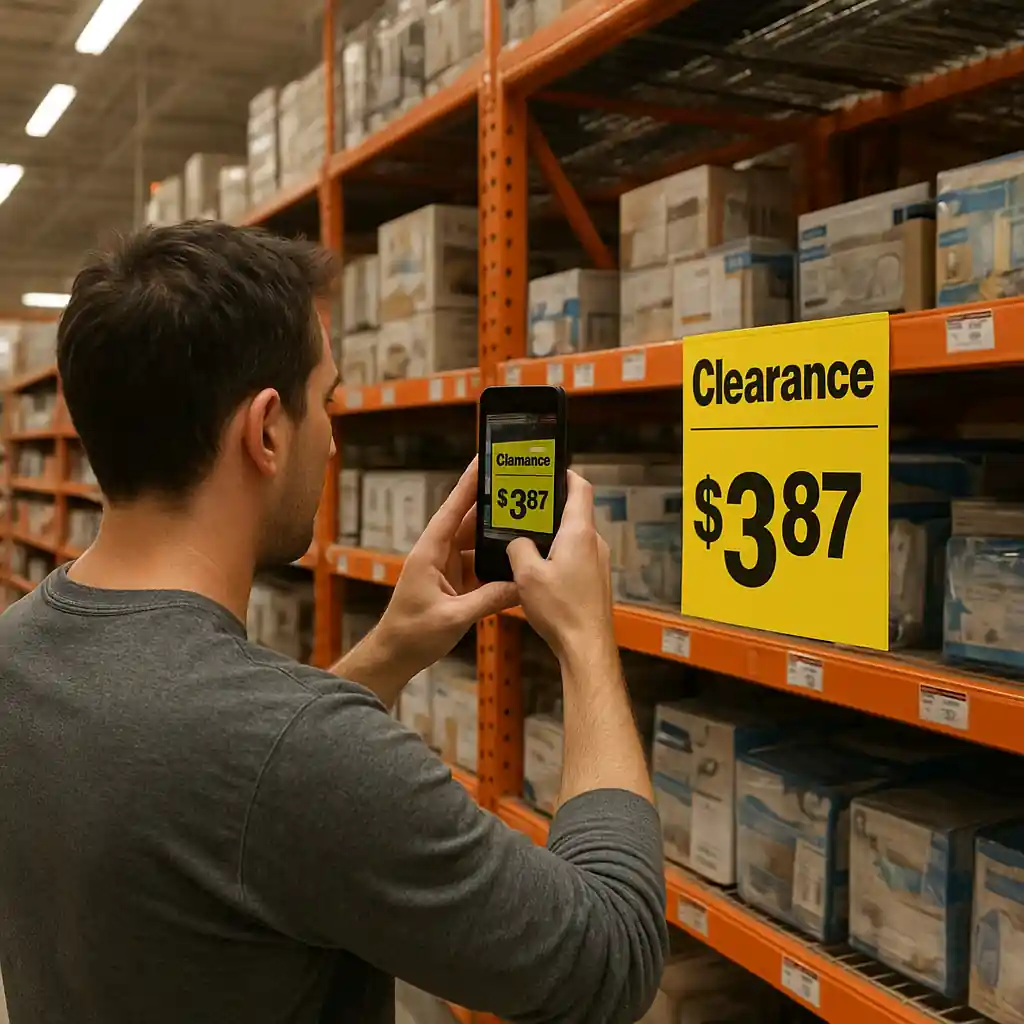
Quick Checklist
- Confirm the listing shows the penny price before you add it to cart.
- Check quantity limits (one-per-customer or per-SKU) and reduce quantity to one.
- Verify the SKU scanned in cart matches the product detail (not a similar UPC).
- Switch to the store pickup option if the penny price requires in-store availability.
- Clear browser cache or use a private window, then re-add the item.
- Try the Home Depot app barcode scan in-store to confirm tag pricing.
- Log into the same Home Depot account used to find the deal; some deals tie to account or location data.
- Take screenshots of the penny price page and cart before you submit the order.
Why penny-priced items revert at checkout
Several distinct problems can make a penny deal appear and then vanish when you advance to payment. The core issues fall into two categories: policy rules enforced at checkout, and technical mismatches between the listing, cart, and checkout systems. Understanding which category applies helps you pick the right fix.
1) Quantity and per-customer limits
Many penny promotions use a one-per-customer rule or a strict per-SKU limit. The online cart may accept adding multiple units but the checkout validation runs a stricter rule before payment and forces the price back to the regular cost.
2) SKU/UPC mismatches between page and checkout
Home Depot’s site shows product pages, store inventory, and barcode-level pricing. If the penny tag is for a specific UPC but the online page points to a parent SKU or a different variant, the cart may show the penny until the checkout consolidates the SKU and applies the default price.
3) Location, pickup, or inventory restrictions
Some penny prices are local or valid only for in-store pickup. Your geolocation, selected store, or delivery method can change eligibility at checkout. The cart may not enforce that until you enter shipping or pickup preferences.
4) Cache, cookie, or session problems
Browsers and the app cache pricing frames. If the listing cached the penny price but the checkout pulls live pricing, you’ll see a change when the system refreshes during payment.
5) Expired or manually updated tags
Markdowns can get reversed by store staff or updated in the POS; the product page might show an older penny tag snapshot while the live checkout reflects the current price.
Example flow: how a SKU mismatch causes a flip
- Step 1: You find a penny tag tied to UPC A on a clearance shelf.
- Step 2: The product detail page you open maps to parent SKU P that contains UPCs A, B, and C.
- Step 3: Adding to cart keeps the penny price briefly because the cart stored the scanned UPC A.
- Step 4: Checkout consolidates the parent SKU P to calculate tax/shipping and defaults to the highest-priced variant, removing the penny price.
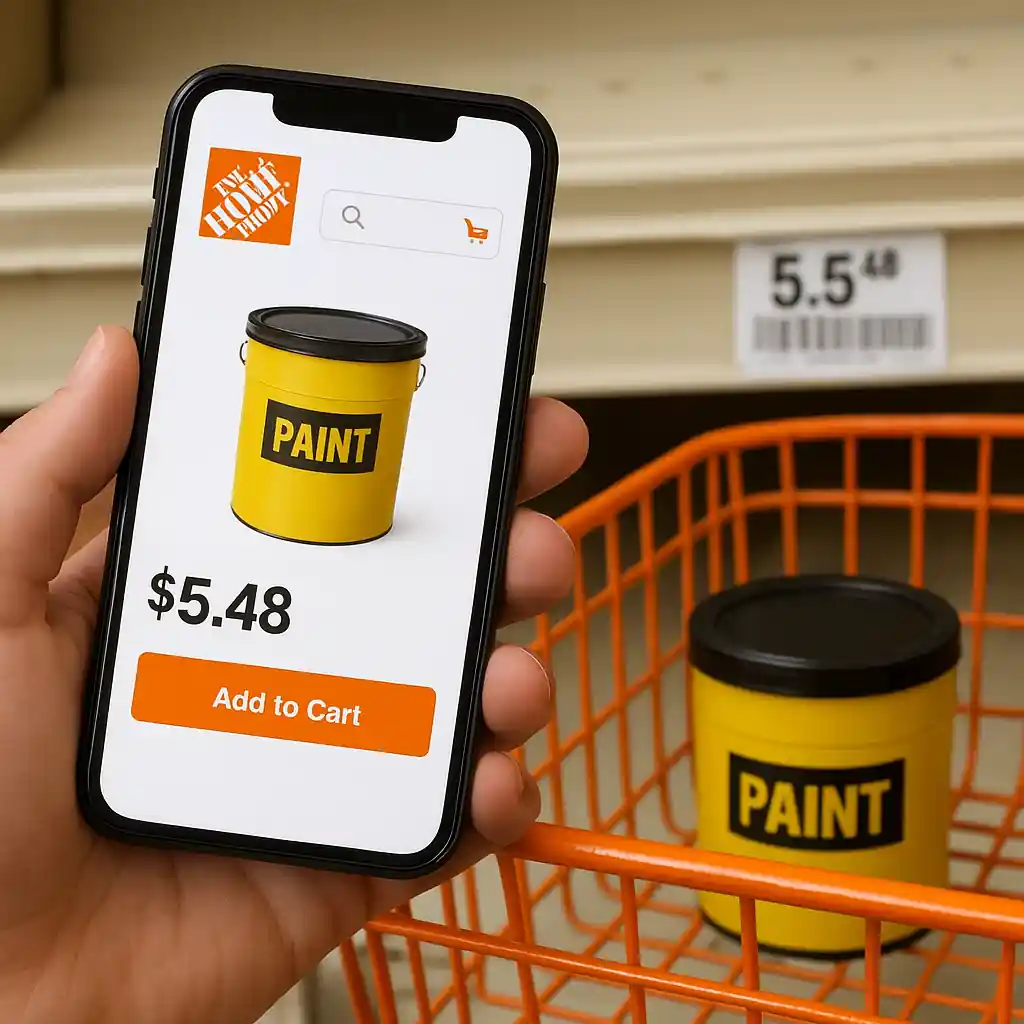
Step-by-step troubleshooting to recover the penny price
Follow this order to rule out common technical causes and preserve evidence in case you need a manual price adjustment.
Step 1 — Capture evidence
- Screenshot product page showing the penny price and timestamp the photo if possible.
- Screenshot your cart showing the penny-item and quantity before checkout.
Step 2 — Check basic rules
- Reduce quantity to one and try again.
- Change pickup/delivery to the store where the penny tag appeared.
- Log out and log back in to refresh account-location binding.
Step 3 — Clear technical blocks
- Open a private/incognito browser window or clear cache and cookies, then re-add the item.
- Use the Home Depot mobile app and scan the barcode in-store to verify live pricing.
Step 4 — Confirm SKU match
- Compare the barcode/UPC on the shelf tag with the barcode returned by the product page and the cart (use the app or barcode scanner tools).
- If they differ, try searching by UPC directly on homedepot.com to find the exact variant listing.
Step 5 — Try a different checkout path
- Switch from delivery to in-store pickup or vice versa to see if eligibility changes.
- Attempt checkout on desktop if mobile fails, and test the app if web fails.
If these steps restore the penny price, complete the order immediately and keep screenshots. If the price still resets, escalate as described below.

When to escalate and how to request a manual adjustment
Escalate only after you gather clear evidence and try the troubleshooting steps above. Home Depot can sometimes honor a penny price with a manual override if the issue resulted from a technical mismatch or a store-level tagging error.
What to include when you contact support
- Screenshots of the penny price on the product page and cart with timestamps.
- Location/store number where the tag appeared (if in-store).
- Product UPC/barcode and SKU if you recorded them.
- A short description of the steps you took to reproduce the issue.
Contact channels
- Use Home Depot customer service page: Home Depot Customer Service for chat or phone escalation.
- Bring printed screenshots and the item to the store’s customer service desk if the penny tag was physical; managers can review register logs and override the price.
What to expect
- If the penny price resulted from a clear tag or SKU error, a manager often issues a manual price adjustment or allows a discounted sale.
- Home Depot follows company policy for exceptions; expect the support agent to ask for proof and to check register history.
Common Mistakes
- Assuming a cart snapshot guarantees final price without taking a screenshot—don’t skip documentation before you click Pay.
- Adding multiple units when a penny deal is single-unit only—bulk adds trigger checkout validation and remove the penny price.
- Relying on the product page alone without checking the UPC on the shelf tag—variant mismatches are common.
- Using a delivery address or store selection that makes you ineligible for a local penny price.
- Failing to try the app barcode scan in-store; the app often shows the live inventory price for that UPC.
- Contacting support without SKU/UPC and timestamped screenshots—agents cannot override without clear proof.
- Waiting too long to escalate after the markdown disappears; price adjustments are easier when the issue is reported promptly.
Related Guides
For broader context and ongoing penny deal coverage, see our main hub and adjacent guides:
- Home Depot Penny Deals (main guide) — the hub for ongoing penny listings, finder tips, and legality notes.
- What Are Home Depot Penny Deals and How Do They Work? — background on how penny tags appear and where they hide in stores.
For checkout-specific coupon issues that sometimes overlap with penny pricing problems, our Home Depot coupon checkout troubleshooting guide can help: Home Depot Coupon Code Online: 2025 Savings Guide.
Authoritative resources: Home Depot customer service and safety guidance can clarify store practices; see Home Depot’s support and the U.S. Consumer Product Safety Commission for safety-related markdowns where relevant.
Conclusion
When a home depot penny deals price flips at checkout, the fastest wins come from verifying SKU/UPC alignment, following the Quick Checklist, and capturing timestamped evidence before you submit payment. Try the step-by-step troubleshooting flow first; if the issue persists, contact Home Depot with clear proof and request a manual price adjustment.
Next step: if you want ongoing penny alerts and full-how-to coverage, visit the main Home Depot penny deals hub linked above.