
This guide walks you through exactly where to enter a promo code for home depot discount during online checkout, how to confirm the savings, and quick fixes when the discount does not appear. It focuses on the checkout flow on HomeDepot.com and the mobile app, including the small UI steps that matter.
Follow the practical steps here to avoid common pitfalls and verify the discount before you finalize payment. If you need broader guidance about every way to save at Home Depot — for example current lists of verified codes, movers’ coupons, or seasonal sales — see our main hub guide linked in Related Guides.
Scope Boundary: This guide focuses on applying a promo code at online checkout; it does NOT list live coupon codes or replace the full Home Depot promo hub for all discount types.
Quick Checklist
- Copy your promo code EXACTLY (no extra spaces or line breaks).
- Choose delivery, pickup, or shipping option — some codes exclude certain fulfillment methods.
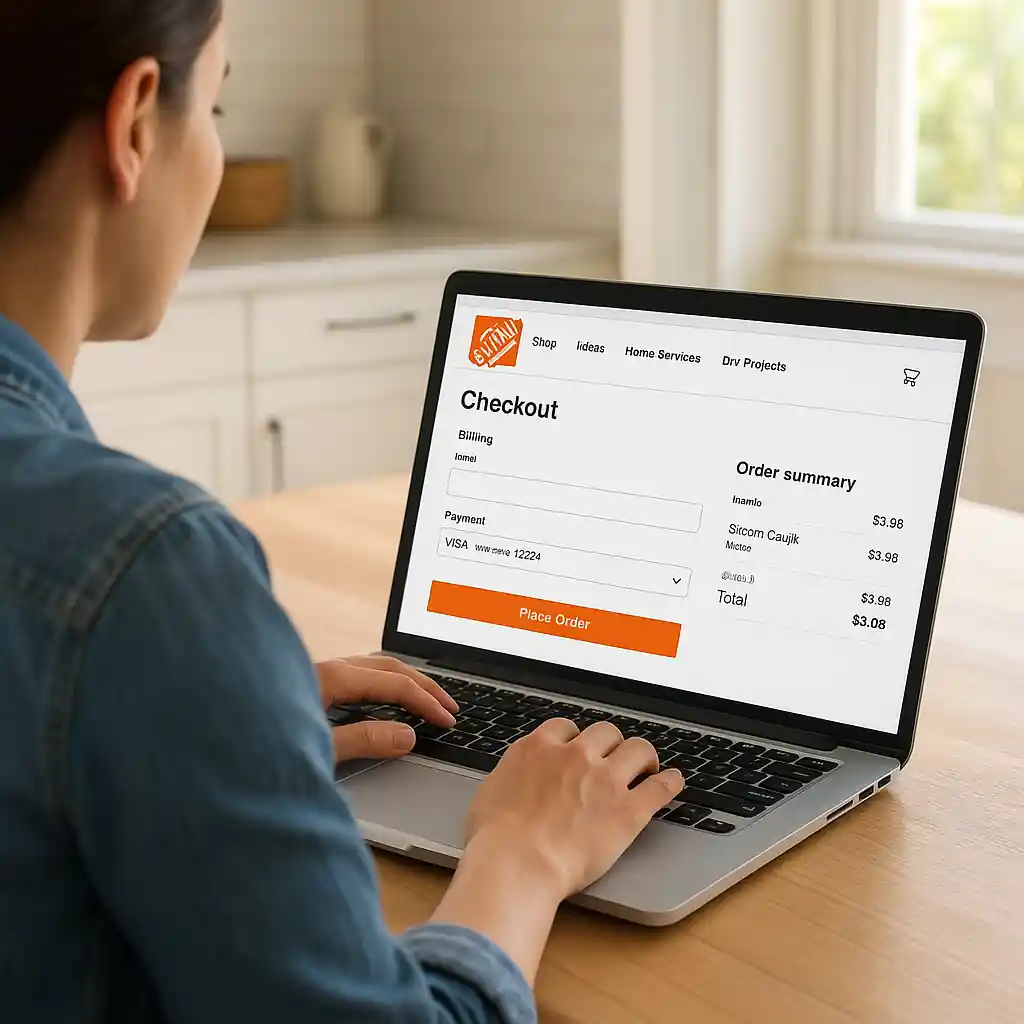
- On desktop: expand the order summary and find the “Promo code or gift card” box before payment.
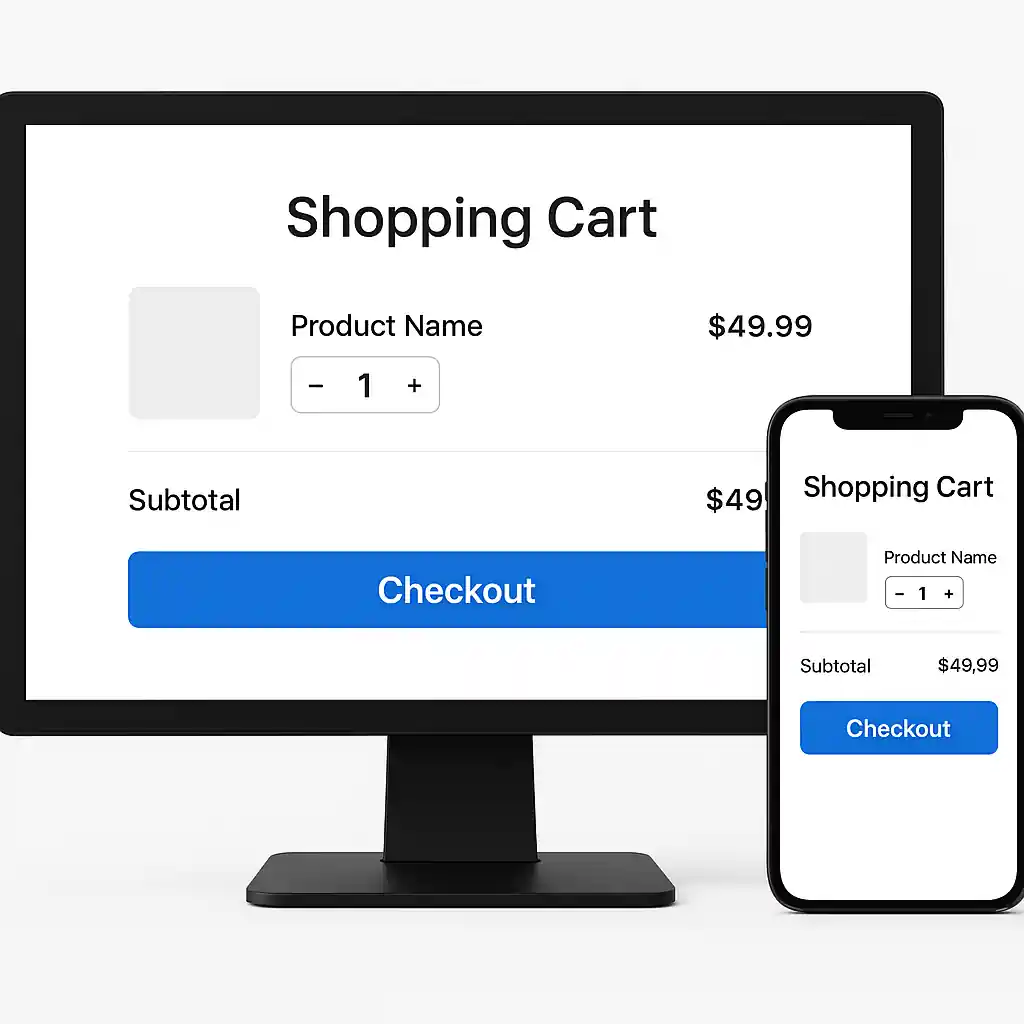
- On mobile: tap “View Cart” then “Apply Promo Code” inside the cart or payment screen.
- After applying, confirm the discount line appears in the order totals before entering payment.
- If it fails, clear the browser cache or try an incognito window and reapply the code.
- Check product exclusions and minimum spend in the offer details (some codes exclude appliances or gift cards).
- Keep a screenshot of the cart totals after the discount appears in case customer service is needed.

Desktop Checkout Flow: Step-by-step
The desktop flow on HomeDepot.com places the promo field in the cart or the checkout review step depending on recent UX updates. Use this short step-by-step list to avoid missing the correct field.
- Open your cart and confirm the items and shipping option you want (delivery vs. store pickup).
- Click “Proceed to Checkout.” When the checkout page loads, locate the order summary on the right-hand side.
- Find the box labeled “Promo code” or “Gift card / promo code” — sometimes it’s collapsed under a small link like “Have a promo?”
- Paste your promo code exactly and click Apply. Wait for the page to recalculate totals; do not refresh while processing.
- Confirm a discount line appears (example: “Promo discount -$XX.XX”) and that taxes/shipping update correctly before entering payment details.
Helpful tip: If the promo field disappears at a later step, the site often moved it into the payment stage. Scroll the final review carefully; totals can change after selecting a payment method or gift card.
Mobile App & Mobile Web Flow
On small screens the input can hide behind menus. The two most reliable mobile flows are via the Home Depot app or the mobile browser cart.
- App: Open your cart, tap “Checkout,” then expand “Order summary.” Tap the small link labeled “Apply promo code.” Paste and Apply. Watch for the discount line to appear before completing payment.
- Mobile web: Tap the cart icon, then “View Cart” and then “Checkout.” Use the same order-summary area to apply your code; if you don’t see it, try rotating your phone or switching to the desktop site view in your browser.
If the app or mobile browser shows a successful application but the final price differs, log into your account on desktop and confirm the total there. Sometimes UI caching makes the app display stale totals until the server recalculates.
Troubleshooting a Failed Promo
When a promo code for home depot discount does not apply, follow this diagnostic flow to isolate the problem quickly.
- Verify the code text: remove leading/trailing spaces and ensure character case matches the code source.
- Confirm eligibility: check product exclusions, minimum order value, and whether the code is for in-store only.
- Try a different fulfillment option (switch from delivery to store pickup) — some promo rules block shipping or require in-store pickup.
- Clear cookies/cache or use an incognito window to rule out session caching. Then re-add items and reapply the code.
- Switch device or browser. If the code applies on one device and not another, take a screenshot of the successful flow for support.
- Contact Home Depot customer service with order screenshots if the discount should apply but does not: https://www.homedepot.com/c/customer_service
Deep Tips: Confirming the Discount Safely
It’s common to assume a code applied when the UI shows a small success message. To avoid surprises, confirm these three checks before clicking “Place Order.”
- Look for a separate discount line item in the order summary. A temporary banner alone is not confirmation.
- Verify the final total after taxes and shipping changed. Some codes alter the subtotal but not the final payable amount if fees are excluded.
- Check email confirmation immediately after placing the order: the emailed receipt should list the promo discount as well. Save that email or screenshot for disputes.
Common Mistakes
- Copy/paste errors: accidentally including a trailing space or newline when pasting the code into the promo box.
- Applying the code before selecting required options: some promos require a specific delivery or pickup choice first, or a product configuration like “add matching filter.”
- Assuming the site caches your cart across devices: you might add items on mobile, then open desktop where a promo is not available for those SKUs.
- Overlooking exclusions: appliances, gift card purchases, and installation fees are commonly excluded from promotional discounts.
- Not waiting for recalculation: refreshing or navigating away while the site recalculates can drop the promo without a message.
- Using expired or ineligible codes: many codes are targeted, single-use, or region-specific — check the offer details closely.
- Expecting stacking when not allowed: Home Depot often restricts combining certain promo codes with other discounts or with Pro/contractor pricing.
- Failing to capture proof: without an order screenshot or confirmation email showing the discount, customer service has less to act on when a code fails.
Related Guides
- Home Depot promo code hub — the main guide covering all types of Home Depot discounts and where to find verified offers.
- How to use Home Depot coupon codes online — an adjacent walkthrough that explains overall coupon rules and when codes work on different product categories.
If you need official support about order errors or payment issues, consult Home Depot’s customer help center or visit the FTC for consumer protection guidance regarding coupon and promotion disputes: https://www.ftc.gov/.

Conclusion
Applying a promo code for home depot discount is usually a matter of finding the correct promo input, matching fulfillment rules, and confirming the discount line in the final totals. Use the step-by-step flows here for desktop and mobile, capture screenshots when a code appears, and follow the troubleshooting list if it doesn’t.
Next step: if you want broader coupon options and verified offers, visit the Home Depot promo code hub linked above to continue your savings journey.
Editor’s note: For the main hub guide and related updates on how to use a home depot promo code at online checkout, see this overview.