
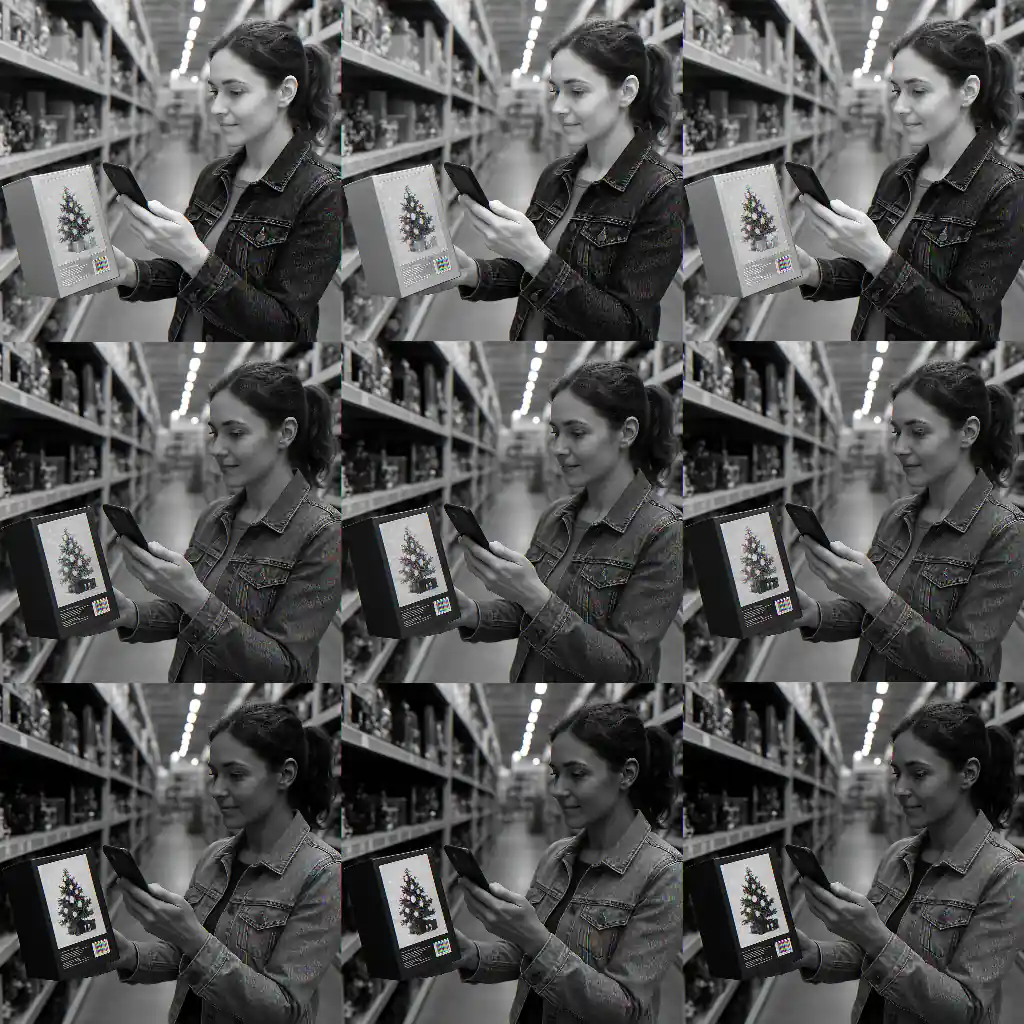
This guide shows precisely how to use the Home Depot app, handheld barcode scanning, and in-store price checks to find hidden Christmas clearance markdowns that aren’t obvious on the shelf. You will learn the app flows, the quickest SKU and barcode checks, how to read markdown code patterns, and what aisle/backstock signals to watch for.
Scope Boundary: This guide focuses on app and in-store barcode strategies to reveal concealed discounts; it does NOT list current coupon codes or attempt to catalog every clearance item. For the full clearance timing, visit the site hub linked at the end.
Quick Checklist
- Install or update the Home Depot app and enable camera permissions for barcode scanning.
- Set your local store in the app before you arrive so SKU lookups show local inventory and pricing.
- Bring your phone plus a small notebook or screenshots to record SKU, UPC, and aisle info.
- Scan tags with the app scanner and then use the in-store price-check kiosk when results differ.
- Know the common markdown codes (examples explained below) and look for sticker layers on tags.
- Check endcaps, pallets, and peg hooks for older tags or taped-on markdown labels indicating backstock shifts.
- If a price seems wrong at checkout, politely ask a floor associate to check the stockroom SKU or shelf tag.
- Photograph barcodes and shelf tags for returns or price verification requests later.
Deep Dive: Use the Home Depot App Barcode Scanner Correctly
The Home Depot app includes a barcode scanning tool that can retrieve product pages, local price, and availability. Many hidden markdowns show up in the product detail page even when the shelf still displays the original tag. Follow this step-by-step flow to use the app effectively.
- Open the Home Depot app and tap the search icon then the barcode scanner (camera) icon.
- Center the product UPC or shelf barcode in the frame; the app will attempt to match UPC to its product page.
- Confirm the matched item by checking model number and dimensions — some seasonal items share similar barcodes across sizes.
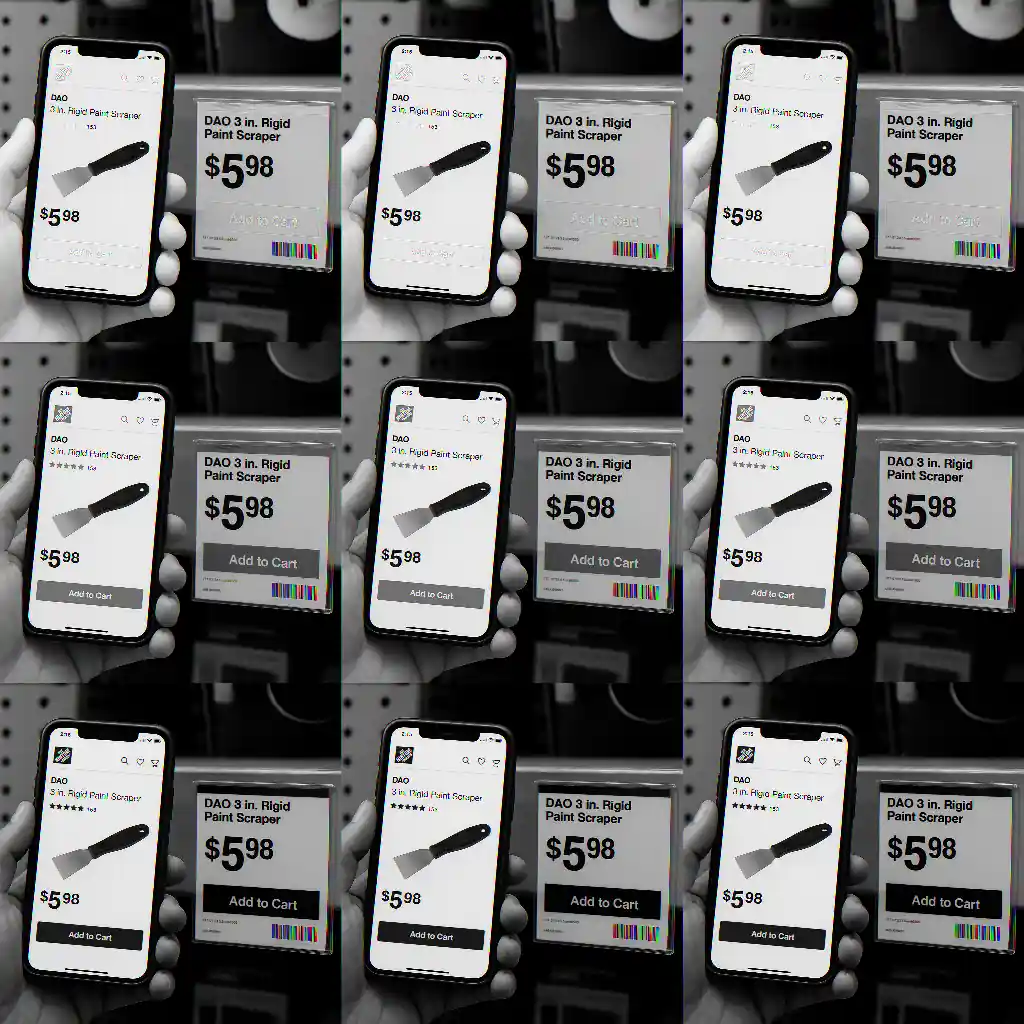
- On the product page, check price and the “Available at” section for your store. If the app lists a lower clearance price than the shelf tag, record the SKU and timestamp a screenshot.
- If the app shows a clearance price you don’t see on the shelf, use the in-aisle price-check kiosk (or ask an associate) to confirm. Keep a photo of the shelf tag and the app result to speed verification at checkout.
Why the app sometimes reveals hidden markdowns
The app pulls from the central inventory and pricing system, which can contain more recent markdowns applied at the regional or store level. Shelf tags are sometimes left behind during pallet resets or when backstock is moved; a mismatch between the app and shelf often means the price changed after the original tag was printed.
Deep Dive: In-Store Price-Check Scanners and SKU Lookups
Home Depot price-check kiosks and self-serve scanners are useful when the app is inconclusive. These devices typically read the same SKU system used by registers, so they can be a quick tie-breaker.
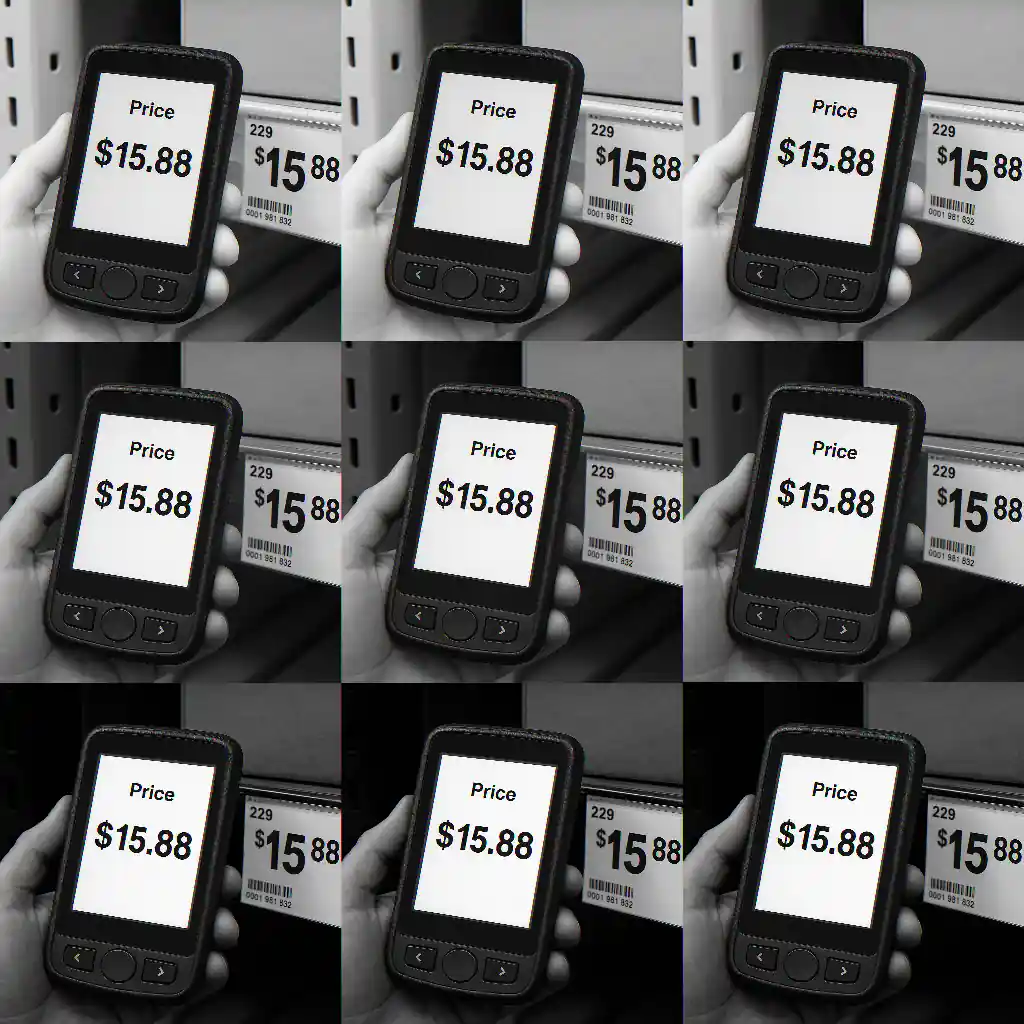
- Find the nearest price-check kiosk and scan the barcode on the item or the shelf tag.
- Compare the kiosk price to the app result. If both list a lower price than the shelf tag, the markdown is likely active.
- When the kiosk shows clearance but the shelf does not, note the item’s SKU and the kiosk display time and ask a sales associate for a stockroom check.
- If the kiosk shows full price but the app shows clearance, request a manager or CSR to look up the SKU in their handheld device — sometimes regional promotions are flagged differently in each system.
Short flow to confirm a hidden markdown:
- Scan in-app → screenshot product page price.
- Scan at price-check kiosk → photo of kiosk price.
- If different, ask for a stockroom/shelf tag check and record the associate’s name and time.
Deep Dive: Decoding Markdown Tags and Aisle/Backstock Signals
Home Depot uses sticker layers and short codes on tags. Being able to interpret common patterns helps you spot items due to hit deeper clearance waves.
Common tag clues to spot
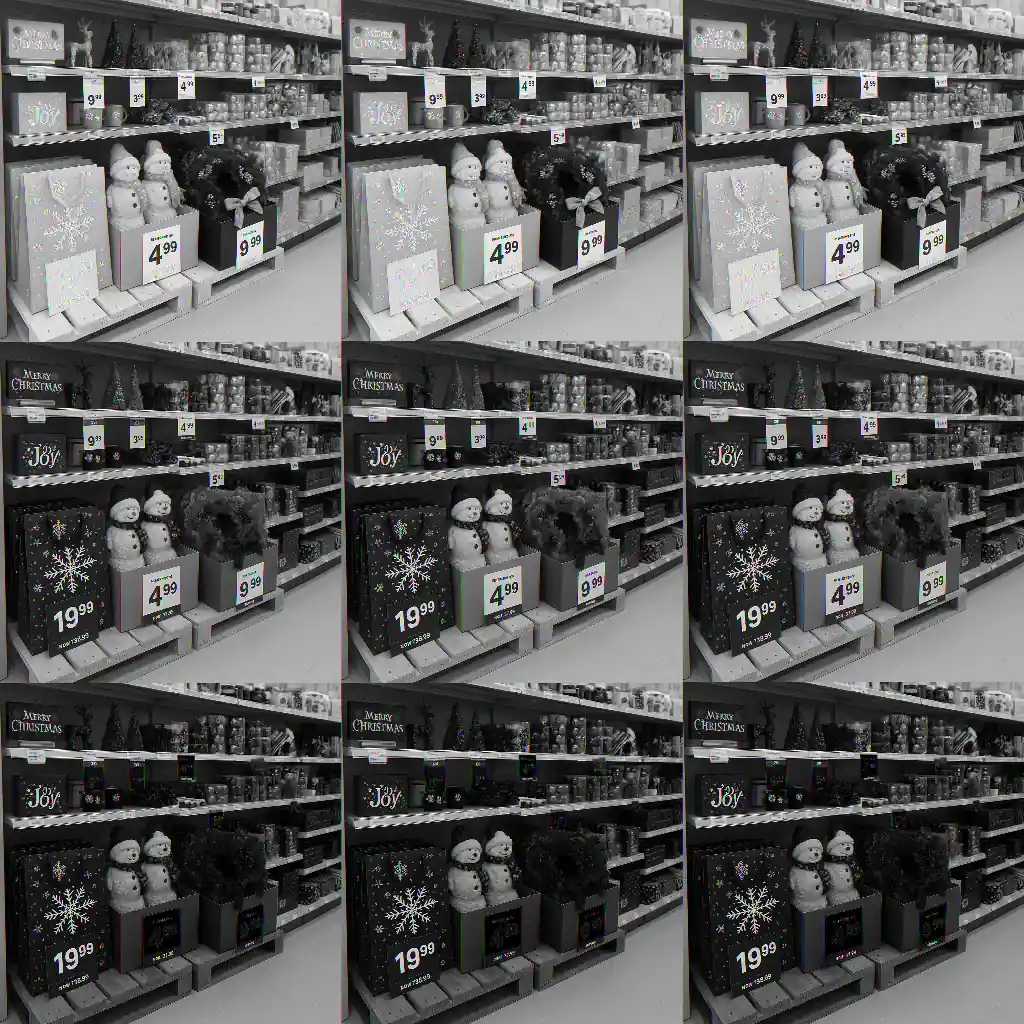
- Sticker layers: multiple tags layered over each other often indicate several previous markdowns—peel or lift corners carefully to inspect.
- Color coding: some stores use colored stickers for seasonal markdowns; a faded or mismatched color can signal an older clearance layer.
- Tag dates and codes: a small printed code or date near the price is often a markdown batch identifier — record it and compare across similar items to see a pattern.
- Loose pallets or boxed returns in aisles often indicate a clearance reset is in progress; ask a floor associate politely about incoming markdowns.
Step-by-step to decode a tag:
- Photograph the tag, including any tiny printed codes near the barcode.
- Compare that code to other nearby tags of the same department—consistent codes usually mean the entire section was included in a markdown wave.
- When you find repeated codes with different prices, the lowest price is the current system price; verify with app and kiosk scanning.
Common Mistakes
- Relying on shelf tags alone — many hidden markdowns exist only in the central system until staff update the physical tag.
- Assuming similar-looking packaging equals identical SKUs — seasonal variants can carry different UPCs and clearances.
- Not recording SKU or barcode — without the exact code, staff may struggle to verify the price quickly at checkout.
- Failing to set your local store in the app — you may see national prices that don’t match your store’s inventory or markdowns.
- Confronting staff without photos — polite, documented requests with screenshots and kiosk photos speed resolution and avoid confusion.
- Peeling tags aggressively — damaging tags or product packaging can create problems and may void staff willingness to assist; take photos instead.
- Ignoring pack sizes — clearance on a display model doesn’t always apply to boxed stock; verify UPC on the box before you buy multiple units.
- Assuming online and in-store prices always match — Home Depot sometimes runs online-only clearance or regional store markdowns; check both places before you assume a price should match everywhere.
Related Guides
For broader context on timing and the overall clearance strategy, see the main hub that covers the entire topic:
- Home Depot Christmas clearance guide — the pillar hub for timing and category-wide advice.
- When does Home Depot Christmas clearance start? — timing and markdown wave patterns that pair well with barcode tactics.
- Online vs In-Store: Home Depot Christmas Clearance — differences to check when the app and shelf disagree.
Authoritative sources on safety and product recalls that matter when buying clearance seasonal goods:
- Home Depot official site — product pages, recalls, and store policies.
- U.S. Consumer Product Safety Commission — recall and safety notices for seasonal items.
Conclusion
Using the Home Depot app and barcode scanning alongside in-store kiosks and smart tag decoding reveals many hidden home-depot-christmas-clearance markdowns before they become obvious on shelves. Record SKUs, photograph evidence, and confirm prices with a kiosk or associate to make the checkout smooth.
Next step: if you want a full timetable and category-level advice for the holiday season, visit the Home Depot Christmas clearance guide for the broader strategy and timing details.