
This guide walks you through practical troubleshooting when a Home Depot deal discount fails at checkout. You’ll get an ordered checklist, the common technical and SKU causes, what to show a cashier, and exact wording and documentation to get a price adjustment or escalation.
Read this page for fixes that work right away; this is NOT a list of the latest coupons or a comprehensive savings guide. For the full overview of current deal types and daily alerts, see our main Home Depot deals hub.
Scope boundary: This guide focuses on diagnosing and resolving a single failed Home Depot deal discount at checkout and does NOT list or validate current promo codes or global saving strategies.
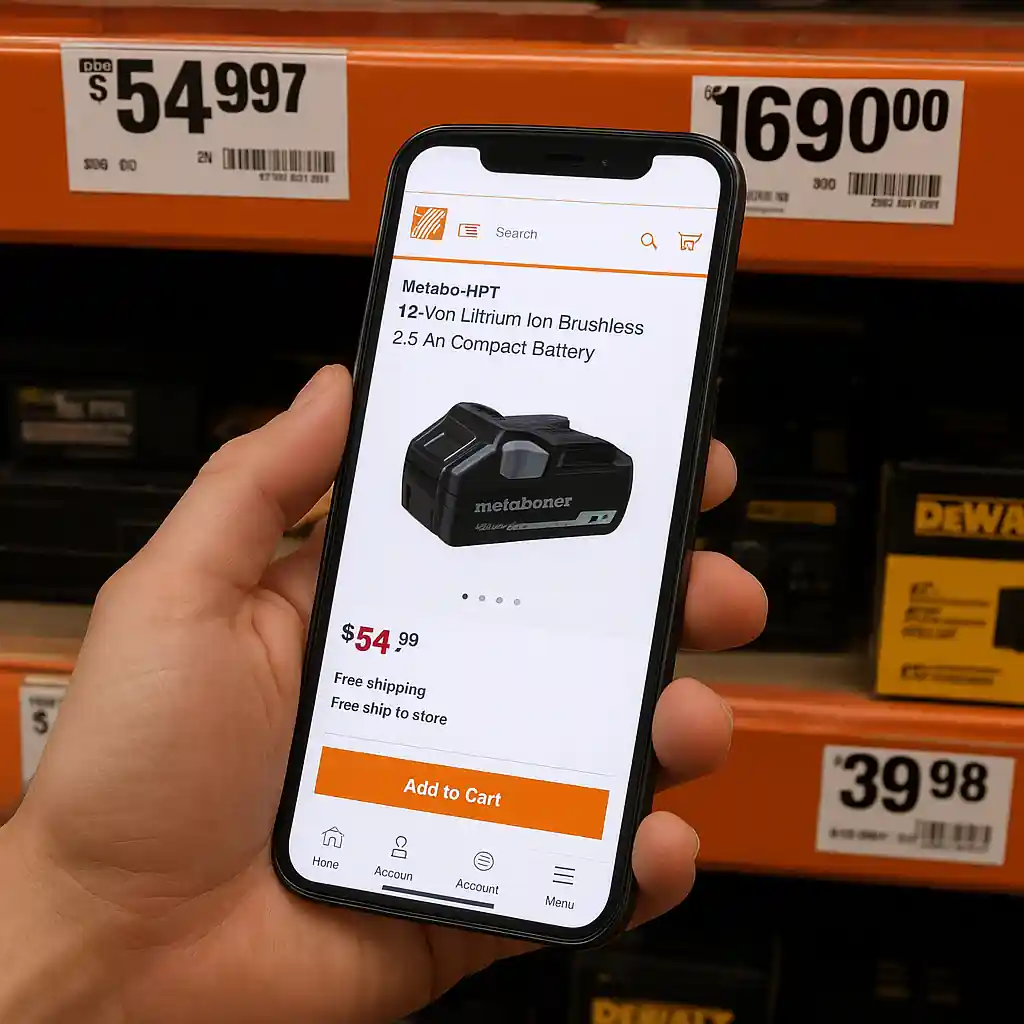
Quick Checklist
- Refresh the checkout page and clear your browser cache or test in an incognito/private window.
- Confirm the item is the exact deal SKU (compare product code in cart vs product page).
- Remove and re-add the item to force a price refresh, then try a different browser or the mobile app.
- If in-store, scan the item barcode with the Home Depot app or ask an associate for a manual price check.
- Document the deal: take a screenshot of the deal page, product SKU, and the cart showing full price.
- When contacting support, have order number, store number (if in-store), SKU/UPC, screenshots, and timestamp ready.
- Ask for a price adjustment or manager review; if refused, escalate via Home Depot customer service and provide your documented proof.
- Check exclusions (special orders, installation services, or certain appliances) before asking for adjustments.
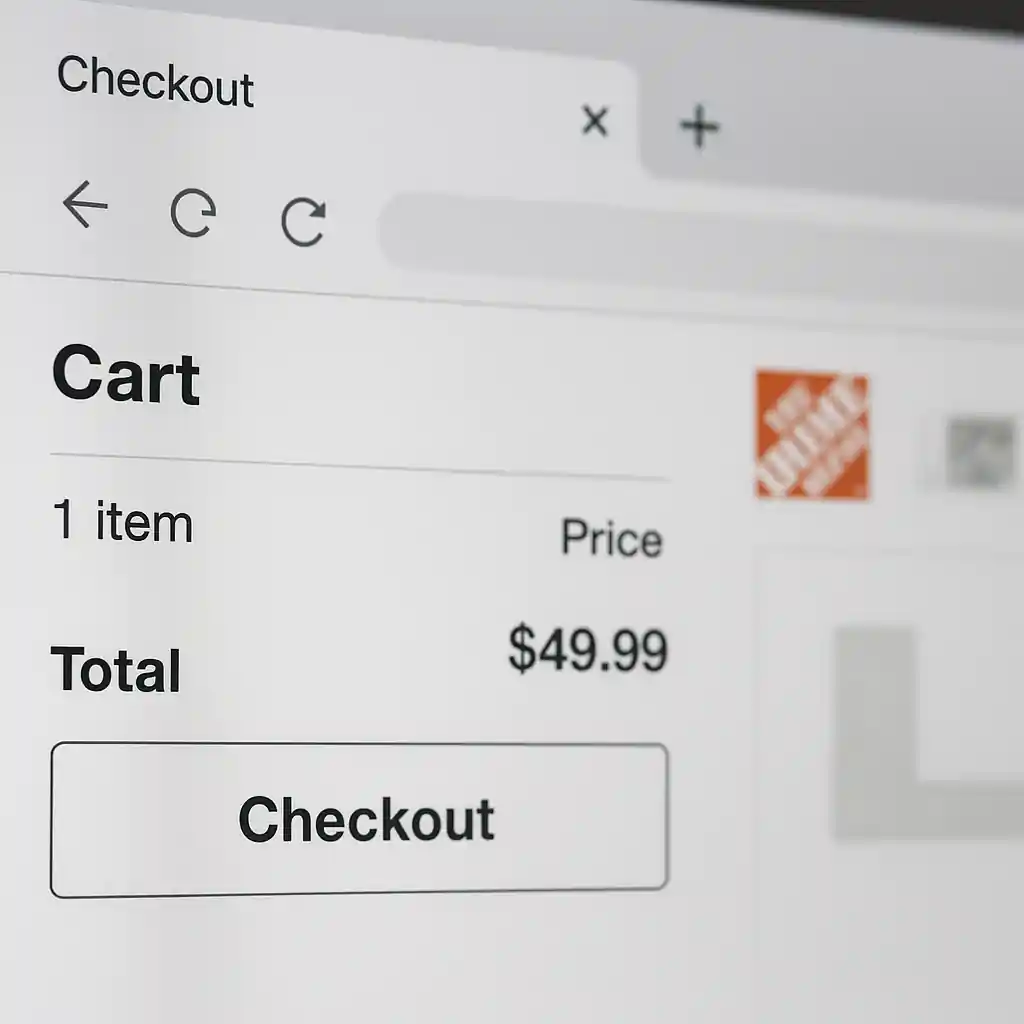
Why a Home Depot Deal Discount Fails (Deep Dive)
When a home depot deal price drops on a listing but doesn’t apply in your cart, the root cause usually falls into one of three buckets: client-side issues (browser/app), SKU or cart mismatches, and store-level scan/configuration errors. Below we explain each and give precise remediation steps.
1. Browser or App Problems
Cached price data, lingering cookies, or an app sync delay often causes the checkout to show the regular price. Start with these steps:
- Step 1: Close the app or browser tab. Force-close the Home Depot app if using mobile.
- Step 2: Clear cache and cookies or open an incognito window. On Chrome, follow official steps to clear cache and site data.
- Step 3: Revisit the deal product page and add the item to a fresh cart; do not restore an old cart session.
- Step 4: If the discount still fails, try the Home Depot mobile app (app-to-server sync sometimes picks up sale prices faster) or a different device.
When multiple devices show the same failure, the problem likely isn’t local — move to SKU and cart checks.
2. SKU / Cart vs Product Page Mismatch
Sales and flash deals attach to specific SKUs or UPCs. If the cart contains a different SKU, a bundle, or a seller-fulfilled variant, the discount won’t attach.
- Verify the SKU: On the product page locate the SKU/Product ID and compare it to the cart line item.
- Check item options: Ensure the chosen color, pack size, or bundle is the same SKU the deal covers.
- Re-add the exact SKU by using the product page’s Add button; avoid adding from a saved list or search result.
- If your order combines multiple sellers or special-order items, split the purchase to isolate the deal SKU and re-test.
Example flow to confirm SKU match:
- Open the deal product page → copy SKU/PN (on web or app).
- Open cart → expand the line-item to reveal SKU; compare values.
- If different, remove the item and add again from the deal page; then refresh cart.

3. In-Store Scan and Register Errors
In-store, a deal might be active online but the store register or shelf tag not updated. Follow this short in-store flow:
- Scan the barcode with the Home Depot app to confirm the online price and SKU.
- If the app shows the deal price but the register charges full price, politely request a price check from the cashier or Customer Service desk.
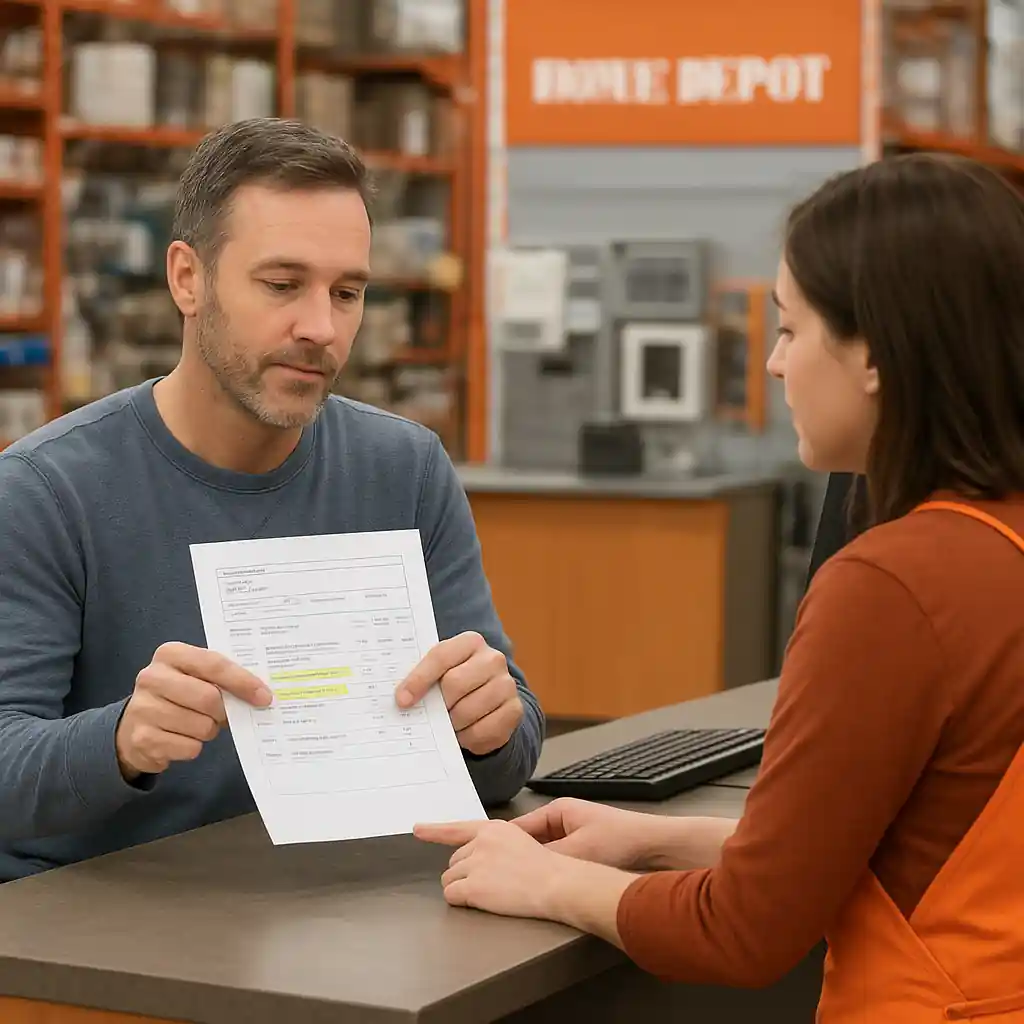
- Show the app screenshot and the shelf tag; ask for a manager review if needed.
- If the register cannot apply the discount, request a price adjustment before completing the purchase or insist on holding the item and calling customer service for confirmation.
If the associate says the system won’t allow it, document the interaction, note the associate name or employee ID, and escalate via the Home Depot customer service page: https://www.homedepot.com/c/customer_service.
Fixing the Problem: Exact Steps to Get a Price Adjustment or Support Help
Follow this checklist when you talk to a cashier, manager, or Home Depot support agent. Read each item aloud if you need to keep the conversation factual and fast.
- Step 1 — Prepare proof: Screenshot the deal page, product SKU block, shelf tag (in-store), the cart showing full price, and a timestamp.
- Step 2 — Ask for a price check: “Can you run a price check on SKU ####? The online deal shows $XX.XX and my cart shows $YY.YY.”
- Step 3 — If denied, request a manager and say: “I have the online deal screenshot and SKU. May I request a price adjustment or an exception?”
- Step 4 — If still unresolved, call Home Depot support and provide order number, store number, SKU, screenshots, and the associate’s name; ask for escalation.
- Step 5 — If necessary, file a formal complaint with Home Depot customer service and keep all timestamps and screenshots for reference.
When you contact support online or by phone, use the phrase “price adjustment request for advertised deal SKU ####” to get the agent to look at the correct data quickly. For web checkout failures, include the browser, OS, and whether you tested in incognito mode.
Common Mistakes
- Assuming the site-wide sale applies to every SKU — many deals attach to a single UPC and similar-looking variants are excluded.
- Not verifying the product SKU in the cart before asking a cashier to adjust the price.
- Providing no timestamped proof — agents need a screenshot of the active deal and the cart at the same time to validate an adjustment.
- Using saved cart sessions or wishlists that preserve old prices instead of adding the item fresh from the deal page.
- Trying to combine the deal with an excluded service or installation charge without confirming exclusions first.
- Yelling or being confrontational with store staff; calm, factual requests get faster escalation and manager approval.
- Failing to test a different device or incognito window to rule out local caching errors before escalating to support.
Related Guides
- For the broader overview of daily deals, alerts, and how deal timing works, see our hub: Home Depot Deal Of The Day.
- If you want mobile-specific tips for catching deal alerts and scanning barcodes in-store, read: Mobile App Hacks: Get Home Depot Deal Alerts.
- For troubleshooting when promo codes or discounts fail more generally, this guide explains common coupon failures: Why Most Home Depot Promo Code Offers Fail.
Conclusion
When a home depot deal discount fails at checkout, solve it quickly by confirming SKU alignment, clearing local cache, documenting the evidence, and asking for a price check with precise language. In most cases a calm, documented approach gets the adjustment in minutes.
Next step: if you need broader context on deal timing, exclusions, or daily alerts, visit our main deal hub: Home Depot Deal Of The Day.