
This page walks you through the exact online checkout flow to redeem a Home Depot $20 off coupon. You’ll see where to paste codes, what to do when a discount doesn’t appear, how minimum purchase rules work, and practical fixes for digital wallet or mobile-app quirks.
Scope boundary: This guide focuses on applying a single Home Depot $20 off coupon during the online checkout flow and troubleshooting common failures; for a full list of current codes and broader saving strategies, see our main Home Depot coupon guide.
Quick Checklist
- Confirm the coupon type and any minimum purchase amount before building your cart.
- Use desktop or the Home Depot app checkout where the promo entry is visible — avoid third-party carts.
- Place all items in your cart and verify subtotal meets the coupon threshold (before tax and shipping).
- Disable browser auto-fill or digital wallets temporarily if the promo field disappears.
- Paste the exact coupon code into the “Promo code / Gift card” box and click Apply — don’t press Enter twice.
- Check item-level exclusions (gift cards, installation fees, special orders) that can block the $20 off.
- If the code fails, clear your browser cache or try an incognito/private window, then retry.
- Document the error message (screenshot or copy) before contacting Home Depot support.
Where to Enter the Coupon — Step‑by‑Step Checkout Flow
Knowing exactly where Home Depot expects the promo input avoids wasted attempts. The site updates, but the checkout flow is consistent: add items → view cart → proceed to checkout → payment screen where promo fields appear. Follow these steps.
- 1. Add items to cart. Put everything you plan to buy into the cart before applying a coupon. Home Depot calculates the coupon against the cart subtotal, so adding items after applying may remove the discount.
- 2. Open the cart and review subtotal. Click the shopping cart icon and confirm the subtotal meets the coupon’s minimum if one exists (for example, many $20 off deals require $100+).
- 3. Click Checkout. Sign in if prompted. Some coupons are account-limited and will not apply unless you’re signed in.
- 4. Look for the “Promo code” or “Gift card / Promo” field on the payment page. Home Depot sometimes places the field on the right-hand order summary on desktop or on the payment screen in the app. Paste the code exactly and press Apply.
- 5. Verify the discount line appears in the order summary. The subtotal should update immediately to reflect the $20 reduction. If it does not, do not place the order yet — read the error details below.

Quick flow for mobile app users
- Open the Home Depot app → Tap Cart → Checkout → Payment → Promo code field → Paste code → Apply.
- If the promo field is hidden, tap the order summary to expand it — app UI sometimes collapses fields on small screens.
Minimums, Exclusions, and How the Math Works
Most failed redemptions trace to subtotal math or item exclusions. Read the coupon fine print and check how Home Depot calculates the threshold.
- Minimum purchase: Confirm whether the minimum applies to pre-tax, pre-shipping subtotal. Typically Home Depot counts the cart subtotal before tax and shipping when enforcing minimums.
- Excluded items: Installation services, some appliances, gift cards, and third-party marketplace items are commonly excluded. If the discount still doesn’t apply, remove suspected excluded items and re-test.
- Multiple discounts: Home Depot rarely allows stacking two store promo codes. If another coupon is already applied, the $20 off may be blocked.
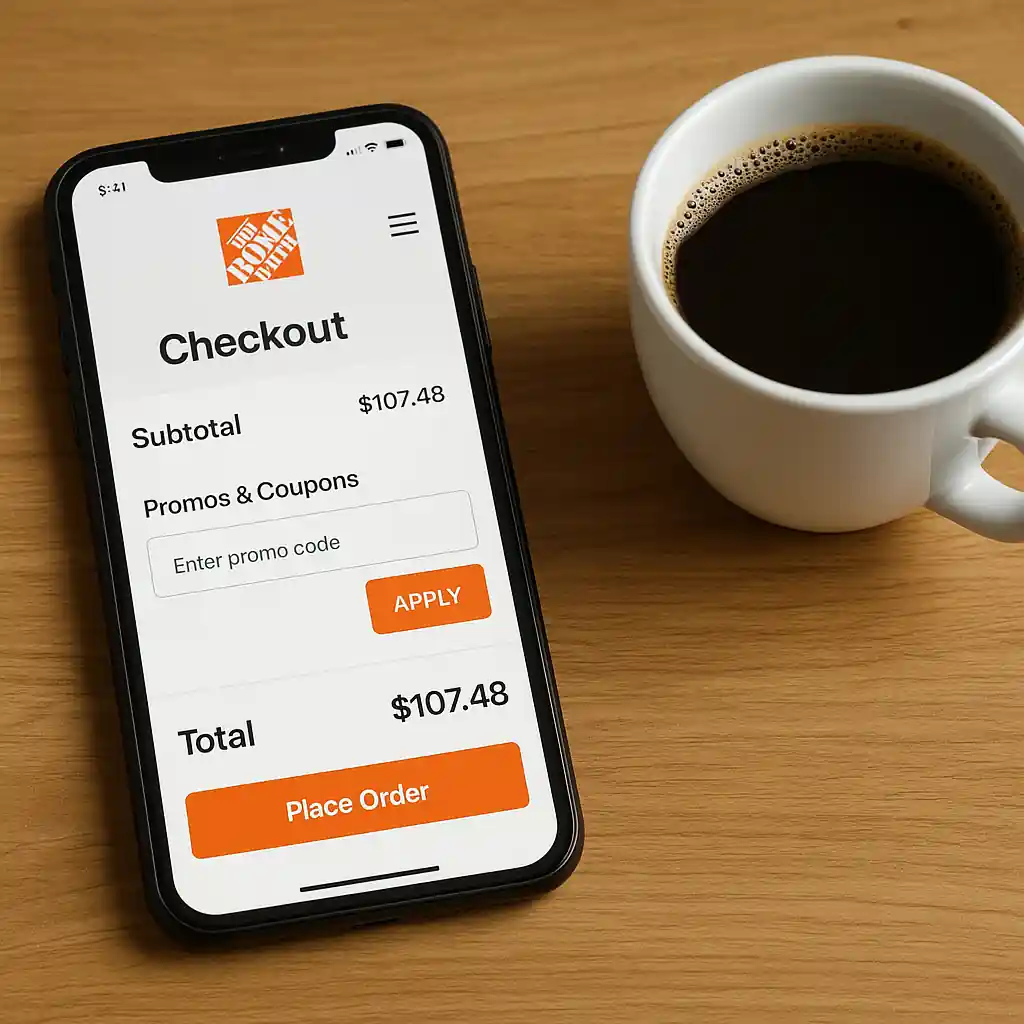
Step-by-step to confirm the subtotal qualifies
- Open the cart and expand the order summary.
- Note the advertised coupon minimum, if any (example: $100).
- Check the displayed subtotal (before taxes and shipping). If it’s below the minimum, add an inexpensive qualifying item to reach the threshold.
- Re-apply the coupon on the payment page.
Digital Wallets, Auto-Fill, and Mobile Quirks
Digital wallets and browser auto-fill can change which fields are visible or cause the promo box to disappear, especially on mobile. Follow these practical checks to avoid UI interference.
- Temporarily disable Apple Pay, Google Pay, or PayPal in the payment step and use a card entry instead to expose the promo field.
- Turn off browser auto-fill for the checkout page. Auto-fill sometimes shifts focus and hides dynamic promo inputs.
- If you hit a blank page or spinner, switch to an incognito/private window. That clears cookies that can hold a stale cart state.
When the app and desktop behave differently
- Try the alternate interface. If the app hides the field, use desktop. If desktop times out, try the app.
- Keep a short test: add one inexpensive qualifying item, attempt the coupon on each platform, then proceed.
Common Mistakes
- Applying the coupon before all items are in the cart — adding items later can remove the discount.
- Assuming the minimum includes tax or shipping — Home Depot usually calculates minimums on pre-tax, pre-shipping subtotals.
- Using a coupon on an excluded item (e.g., installation, special-order appliances) without checking the coupon fine print.
- Relying on cached pages or an old session — failing to refresh can show stale totals or hide promo fields.
- Entering the code with extra spaces or line breaks; copy-paste often adds a trailing space that makes a code invalid.
- Trying to stack two store promo codes; Home Depot blocks multiple store coupons in many scenarios.
- Letting a digital wallet auto-select a payment method that hides the promo field; wallets can override the UI.
- Not documenting the exact error message before contacting support — “code not valid” vs “minimum not met” require different fixes.

Related Guides
- Home Depot coupon code online guide — broader hub with the full list of coupon types, how codes differ, and where to find verified offers.
- Troubleshooting Home Depot 20 Off coupon errors — adjacent guide with specific error messages and escalation steps if a $20 off coupon is declined.
For account or order-specific problems that you cannot fix with the steps above, contact Home Depot customer service and provide the error text and order summary: Home Depot Customer Service.
If the interface seems blocked by your browser, try clearing cache or following the browser guidance at support.google.com before retrying.
Conclusion
Applying a Home Depot $20 off coupon online usually works if you confirm the cart subtotal, paste the code into the payment screen’s promo field, and temporarily disable wallets or auto-fill that hide inputs. When a code fails, document the error and try the alternate platform or a private browser.
Next step: if you want a broader walkthrough on Home Depot promo codes and how they interact with sales, see the main Home Depot coupon code online guide.