
This guide teaches a practical, in-store scanning workflow to find Home Depot penny deals using a store handheld or your smartphone. You’ll learn where penny-marked items commonly hide on shelves, how to read tags and SKUs, and a repeatable scan flow that minimizes wasted time.
Scope Boundary: This page focuses on the in-store scanning and shelf-hunt process only; for a full overview of penny deal definitions, legality, and all online tactics, see our main Home Depot penny deals hub.
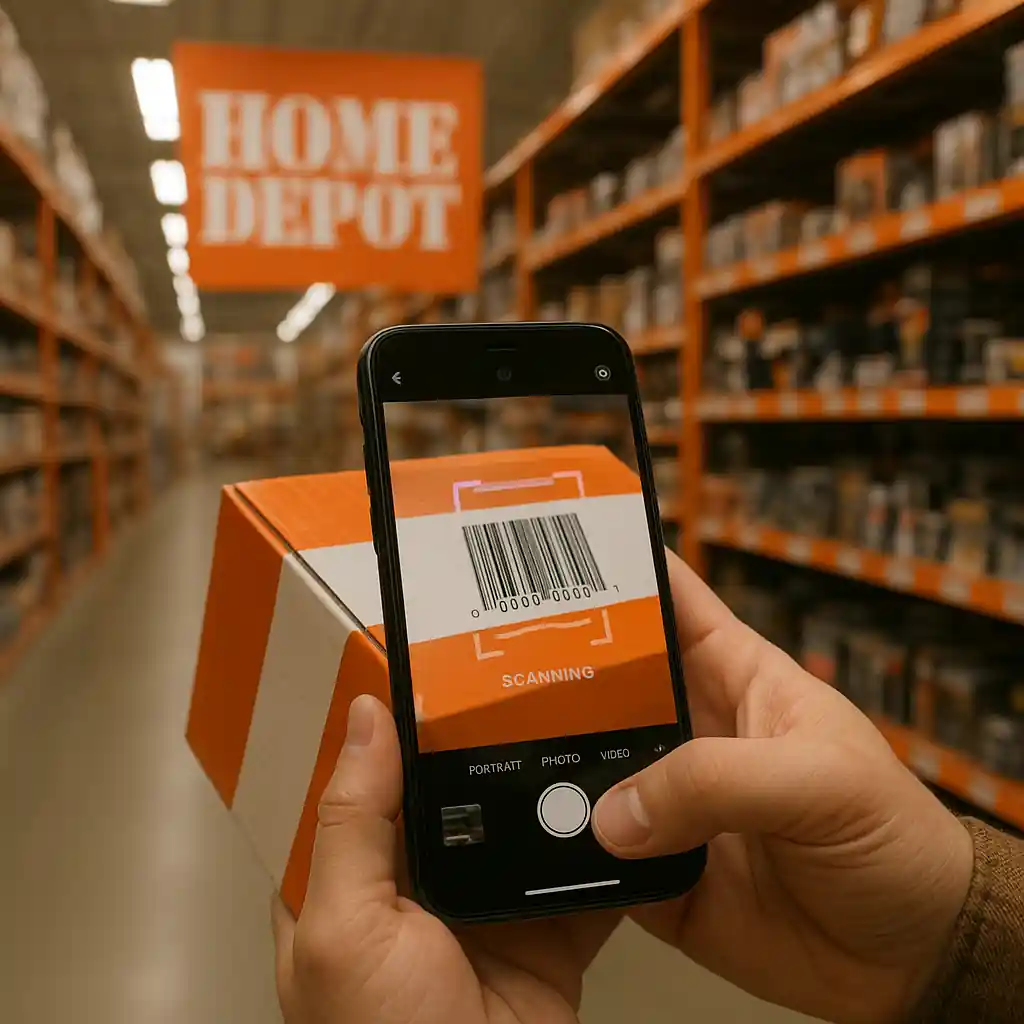
Quick Checklist
- Bring a charged smartphone with the Home Depot app or a barcode scanner app.
- Start in departments that often get overstocked: seasonal, holiday decor, paint accessories, and lighting.
- Look for mixed or mis-shelved pallets and endcaps with random price tags.
- Scan the UPC or SKU using the in-store scanner or app to confirm register price.
- Note the aisle and bin location; pennies move quickly—buy immediately if price shows $0.01.
- When a scan shows a mismatch, ask a floor associate for a price check before leaving the store.
- Check late afternoon on clearance days and early weekday mornings for fresh markdowns.
- Document any discrepancy (photo of tag + scanned price) before requesting assistance.
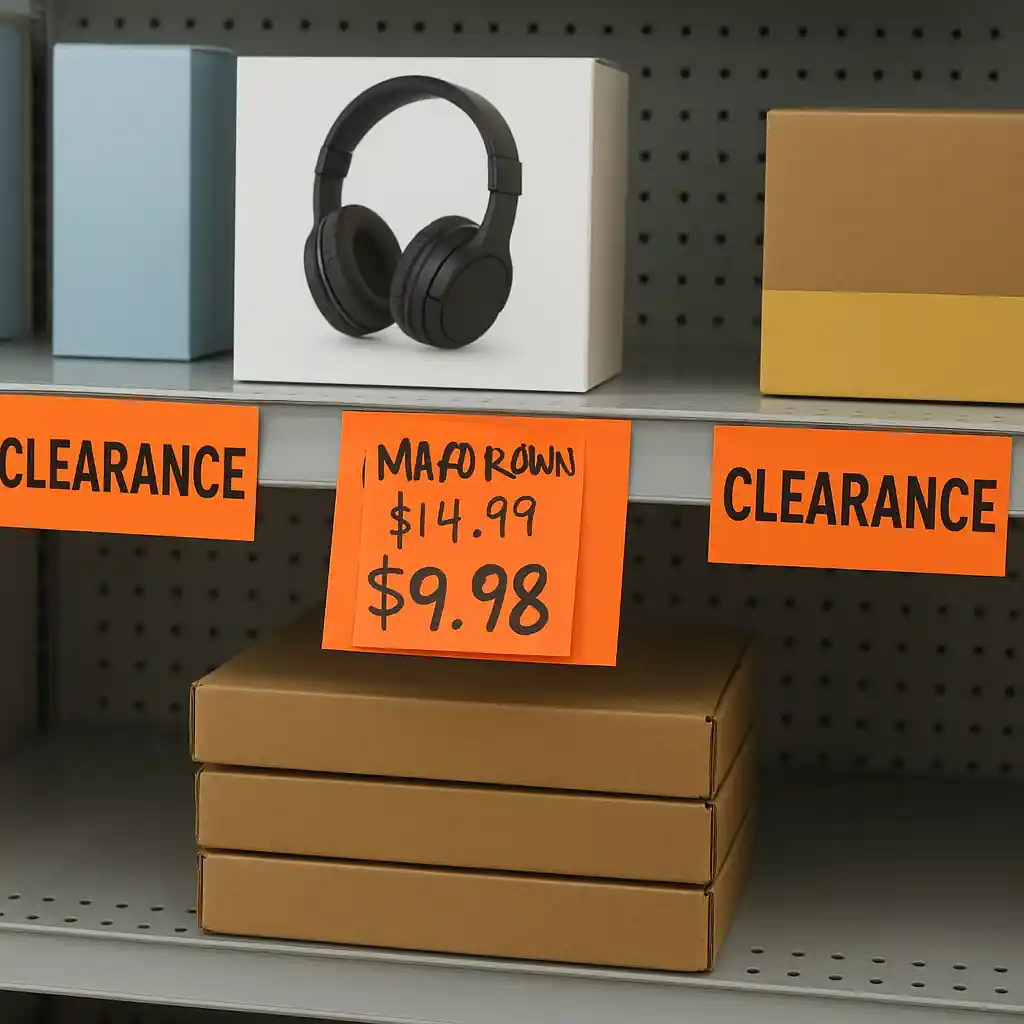
Where Penny Items Typically Hide
Penny-marked items are usually the result of deep clearance tags or system markdown errors and rarely sit neatly in the clearance bay. To save time, target the micro-locations that produce the most hits:
- Endcaps and end-of-aisle pallets: Seasonal overstock and returns often get stacked on endcaps; tags can be manually marked down and not updated in the system.
- Lower shelves and backstock rows: Staff sometimes place clearance or scratch-and-dent items on lower racks to keep aisles neat.
- Overstock stacked near register or garden center: Fast-moving teams move excess cartons here, where tags may carry old markdowns.
- Mixed bins and pegboard clusters: Small accessories (hardware, hooks, adhesives) get re-binned with older tags attached.
When hunting, avoid spending long stretches browsing entire departments. Instead, run short, targeted sweeps of these high-probability spots.
How to Use a Scanner: Handheld vs. Smartphone
Most stores have price-check scanners near aisles or at customer service. You can rely on those, but using your smartphone with the Home Depot app or a generic barcode scanner gives a faster, more private check. The steps below assume you have a smartphone; swap steps for a store handheld when needed.
- Open the Home Depot app (or a barcode scanning app) and allow it to use your camera.
- Frame the UPC barcode or SKU on the product or shelf tag; steady the phone to get a clean read.
- Confirm the scanned result shows an in-store price. The app will typically display online and local store prices—look for the store location or ZIP confirmation.
- If the barcode returns no result, scan the shelf tag SKU instead (often a 6–10 digit item number printed on the orange tag).
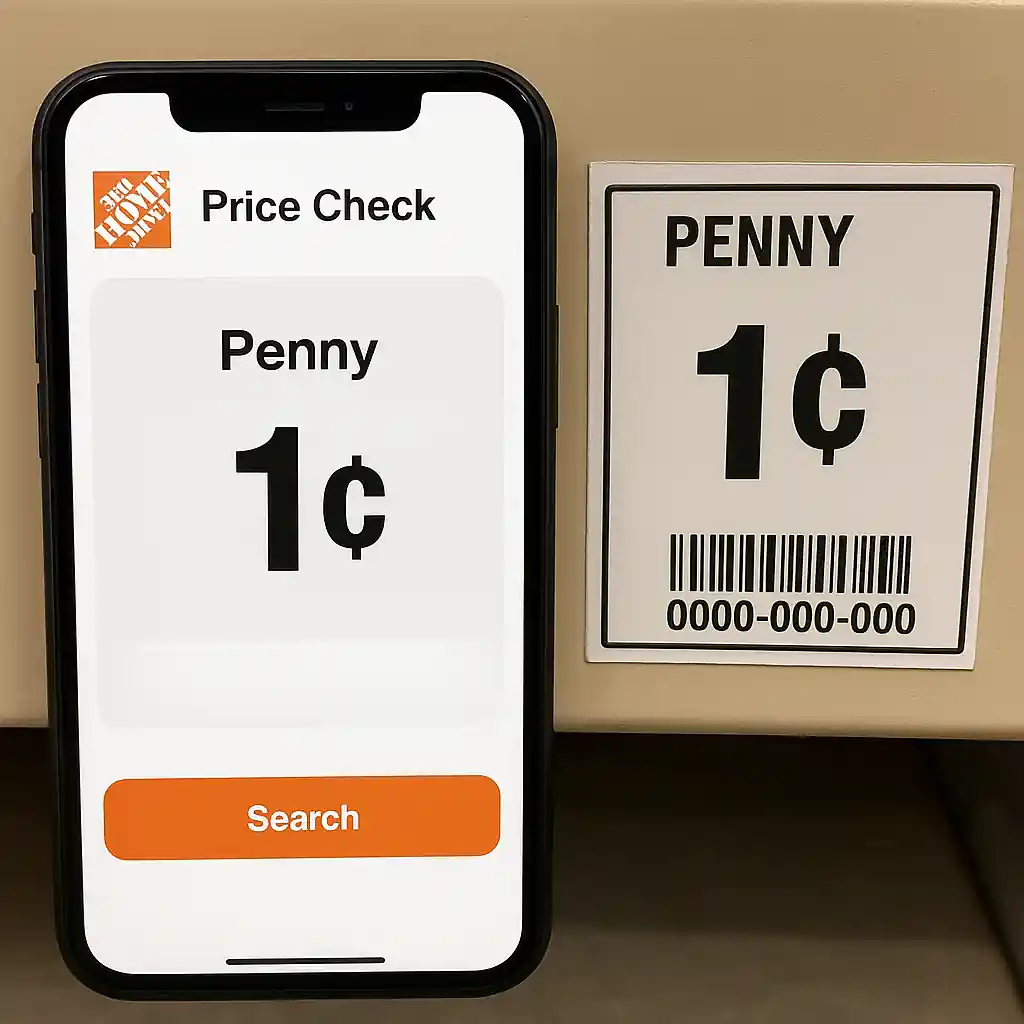
- If the app shows a penny price, move immediately to the register or ask an associate for a price check—penny prices can vanish fast.
Step-by-step in-store scan flow:
- Step 1: Identify candidate items (endcap, mixed bin, or mis-tagged product).
- Step 2: Scan UPC; if the app fails, scan the shelf tag SKU or use the store price-check kiosk.
- Step 3: Confirm the store location in the app matches your store (ZIP/ID).
- Step 4: Photograph the tag and scanned result for proof.
- Step 5: Buy immediately or ask a floor associate to lock the item or perform a price check.

Timing Clues That Increase Your Odds
Knowing when to scan is as important as knowing where. Use these timing clues to catch newly marked pennies before they’re snapped up or corrected in the system:
- Late afternoons and evenings: Stores often process returns and mark down inventory after staff counts earlier in the day.
- Weekdays after lunch: Managers commonly run markdowns or move overstock midweek, so Wednesday–Friday afternoons can be productive.
- Post-season windows: Right after major holidays and seasonal resets the clearance volume spikes—scan holiday or seasonal aisles first.
- During restock or reset hours: When staff are re-merchandising, tags sometimes get swapped incorrectly, creating penny opportunities.
Keep visits short and repeat often. Penny finds are transient: a single correct scan and purchase is the pragmatic goal.
Deep Dive: Shelf Tag and Barcode Decoding
Understanding the difference between shelf tags, UPCs, and internal SKUs saves time. Here’s a short decoding primer:
- UPC barcode: Manufacturer barcode on the product; scanning it typically returns the universal product info and the store price mapping.
- Shelf tag SKU (Home Depot item number): Smaller numeric code on orange tags—often the key to price checks when UPCs return no local price.
- Clearance stickers and handwritten tags: These can mislead; always confirm in the app or with a price-check scan, because the printed shelf sticker may be outdated.
Flow to resolve a tag mismatch:
- If UPC scan shows full price but shelf tag is lower, photograph both and ask for a price check with the associate—some stores honor visible shelf tags if verified immediately.
- If the app shows no data, ask a team member to scan the item with their handheld device; store handhelds query the same inventory system but may provide faster results for special orders or clearance SKUs.
Common Mistakes
- Relying solely on visible shelf tags without scanning the UPC or checking the app; tags are often misapplied and the register may charge full price.
- Scanning only the UPC and ignoring the shelf SKU; some clearance prices are tied to store SKUs not the manufacturer UPC.
- Waiting to buy after finding a penny price; penny items can be reversed quickly when staff notice or in the next system update.
- Not confirming the app’s store location—scanned prices can show for a different ZIP or another store’s clearance.
- Not photographing the tag and scanned screen before asking for a price check; without proof an associate may correct the price at their discretion.
- Assuming all penny-marked items are legal to purchase; some items may be recalled or flagged—always check product safety details if in doubt and avoid items with safety holds.
- Scanning only during busy weekends; those times often see the fastest turnover and fewer penny opportunities compared with midweek visits.
- Using an outdated app version or a third-party scanner that cannot confirm local store pricing—keep the Home Depot app updated for best results.
Related Guides
- Home Depot penny deals hub — the main guide with definitions, legality notes, and broader strategies (required hub).
- How to spot penny tags and barcodes — learn to decode tags and badges before you scan.
- Confirm penny deals using the Home Depot app — steps to validate prices fast from your phone.
Useful external references: Home Depot’s official site for store-help and customer service checks (HomeDepot.com), and the U.S. Consumer Product Safety Commission for safety or recall concerns (CPSC.gov).
Conclusion
Hunting home depot penny deals in-store is a focused workflow of targeted sweeps, quick scanning, and fast decision-making. Use the scan flow here, favor the high-probability locations, and visit at timing windows that produce fresh markdowns. Photograph evidence and act quickly when a penny price shows.
Next step: if you want full context on what penny deals are, how they interact with clearance policy, and the broader legal and safety issues, check the Home Depot penny deals hub for the complete guide.