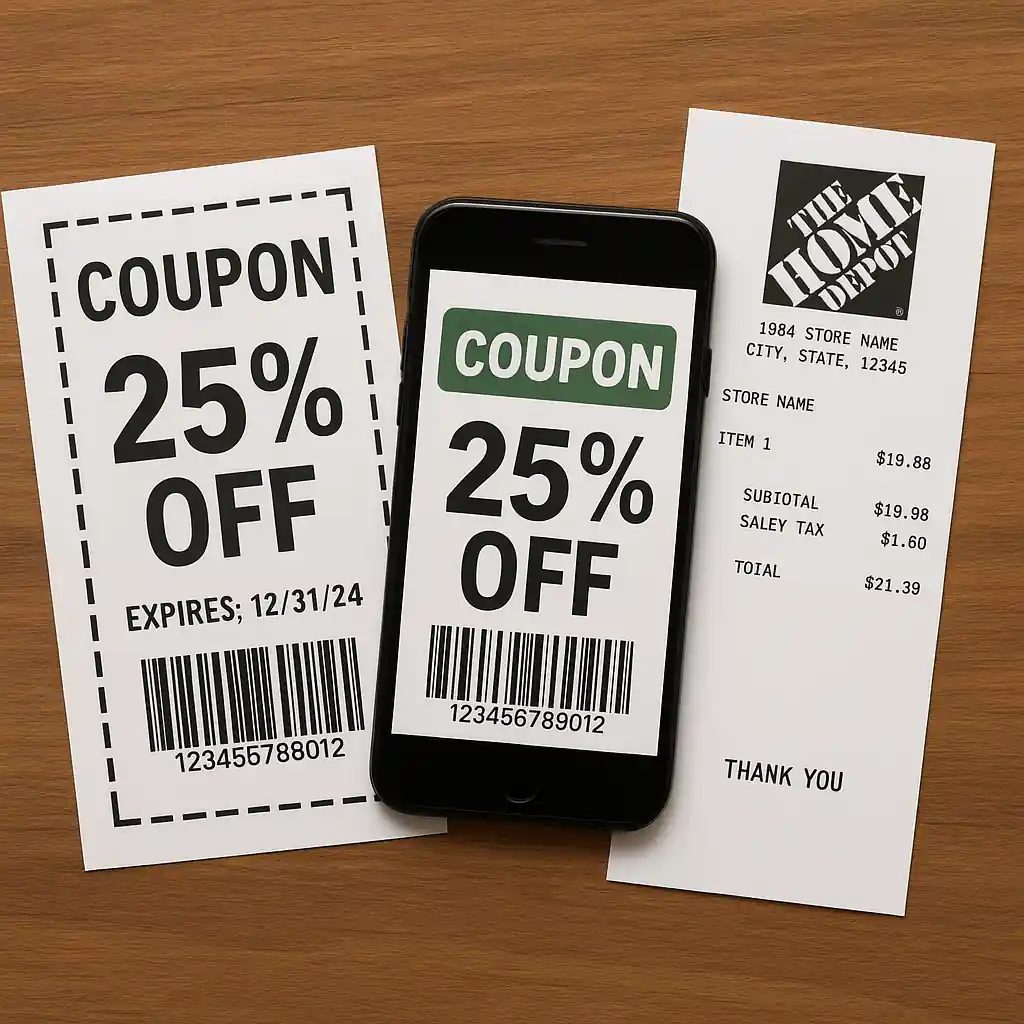
This article shows exactly how to apply a Home Depot coupon when you order online and pick up in store or via curbside pickup. You will learn which coupons must be entered during checkout, which coupons can be redeemed at pickup, and how to avoid the most common pitfalls that block discounts.
Follow the step-by-step checkout flows and the short pickup checklist so you don’t lose savings at collection time. This guide focuses on applying coupons to Buy Online, Pickup In Store (BOPIS) and curbside orders; for the full list of current codes and all ways to save, see our main Home Depot coupons guide.
Quick Checklist
- Sign in to your Home Depot account before checkout so digital coupons attach properly.
- Add items to cart and check each product’s eligibility for promo discounts.
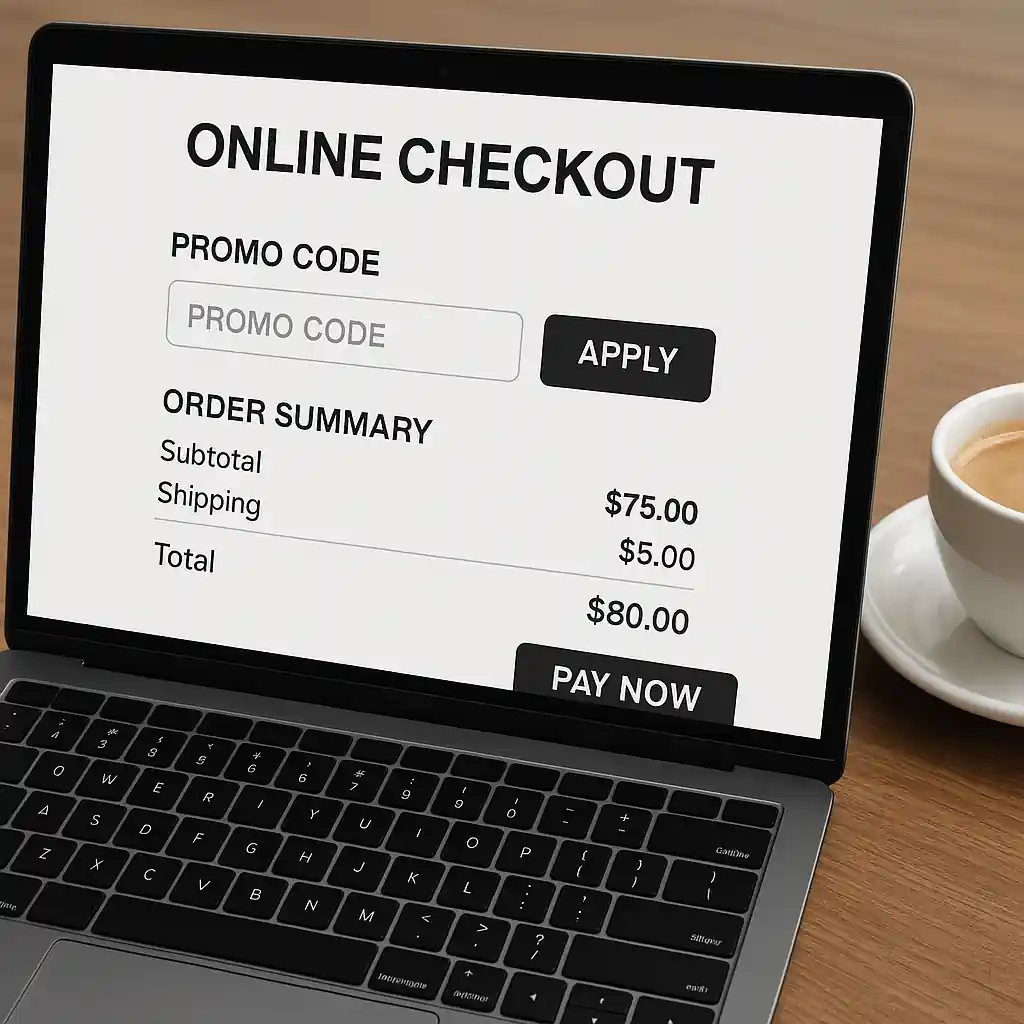
- Enter the coupon code in the online promo code box during checkout when required.
- Select “Pick up in store” or “Curbside pickup” and confirm the pickup store.
- Save the order confirmation and have ID + payment method ready at pickup.
- If a coupon is digital or in your account, confirm it shows applied in the order summary.
- Plan to present paper or digital coupons at the store if instructed in your confirmation email.
- Contact the pickup desk immediately if discounts are missing; don’t leave the lot before resolving.
How Home Depot handles pickup coupons
Understanding how Home Depot applies promotional discounts across channels prevents surprises. Some coupons are redeemable only online, others only at the register, and a few can be applied either way. Manufacturer rebates and third-party offers often follow separate rules.
In general:
- Site-wide promo codes and digital coupons tied to your account are applied at online checkout.
- Instant in-store coupons or printed manufacturer coupons typically require presentation at the store when you pick up.
- Special financing or contractor discounts may need verification at the pickup desk or in-store before completion.
When you plan a BOPIS or curbside order, review the product page and the cart summary for promotional tags and coupon eligibility. Home Depot’s help pages also explain pickup and order policies in detail, which can be useful if you need official terms: Home Depot Help Center.
Step-by-step: Entering coupons during online checkout
This flow covers coupons that must be entered online to reduce the order total before pickup.
- Step 1 — Sign in: Log in to your Home Depot account so account-based discounts (digital coupons) attach automatically.
- Step 2 — Add items: Put all pickup items into your cart. If a promo requires a minimum order, include everything required to meet the threshold.
- Step 3 — View cart and apply code: On the cart page, expand the promo code field. Type or paste the coupon exactly as provided and click Apply. Check the order summary for the discount line item.
- Step 4 — Choose pickup method: Select your store and choose either “Pickup In Store” or “Curbside Pickup.” Confirm the pickup window and any special instructions.
- Step 5 — Review payment: Some coupons alter shipping/pickup fees or tax calculations. Verify the final total and complete the purchase.
- Step 6 — Keep confirmation: Save order confirmation and the applied coupon screenshot or PDF. This helps if a discount fails at pickup.
If a code fails to apply, double-check terms like eligible SKUs, expiration dates, or minimum spend. Many coupon codes exclude clearance, special order, or gift card purchases, which will be reported in the fine print.
At pickup: Coupons that must be shown at the store
Some coupons require an in-person presentation. These include printed manufacturer coupons, printable store certificates, and certain contractor or pro discounts that need identity or account verification.
When your confirmation message instructs you to bring a coupon, follow these steps:
- Bring the email or PDF with the coupon barcode or code, plus the original payment method.
- Provide valid ID when requested for contractor or special account offers.
- Ask the pickup associate to re-scan or key the coupon into their register before items leave the counter.
If an associate says a coupon can only be processed online, ask for a supervisor or call customer service. Save time by having screenshots of the applied discount and the original coupon terms available.
Deep troubleshooting: When discounts don’t appear
Missing discounts at pickup can often be resolved quickly if you follow a compact troubleshooting routine.
- Confirm the coupon type: account-based, online-only, or in-store presentation required.
- Locate the applied discount on your order confirmation email; if absent, show the cart checkout page where you entered the code.
- Request a manager if the pickup desk cannot apply a coupon that was valid at checkout.
- If a price change or system error affected the applied discount, ask the manager to contact customer support while you wait.
For official pickup policy and order changes, Home Depot’s pickup and delivery pages are useful references: Store pickup and delivery information.

Common Mistakes
- Assuming every promo code works for pickup orders — some codes exclude BOPIS or curbside by design.
- Not signing in before checkout, which prevents account-linked coupons from attaching automatically.
- Waiting to enter the coupon at the register — online-only codes must be entered during checkout to change the order total.
- Failing to bring required proof (printed coupon, email, or contractor ID) for coupons that require in-person validation.
- Overlooking SKU exclusions listed in the coupon fine print (e.g., appliances, gift cards, special orders).
- Trying to stack incompatible discounts at the pickup desk; some offers cannot be combined.
- Leaving the lot before confirming the discount — once you drive away, resolving the issue becomes harder.
Related Guides
For broader saving strategies and the full catalog of current promos, see our main Home Depot coupons guide. It covers coupon types, stacking rules, and ongoing weekly deals that this page does not attempt to list.
Conclusion
Applying a Home Depot coupon to a curbside or in-store pickup order is usually straightforward if you know when to enter codes and what to present at pickup. Sign in, verify eligibility, save confirmation screenshots, and check the order summary before you leave the lot.
Next step: review the main Home Depot coupons guide for the full context on promo rules and current offers.