
When you have a lowes promo code 2026, the path to getting the discount depends on where you redeem it. This guide explains the differences between using codes in a physical Lowe’s store, the Lowe’s website, and the app in 2026.
You’ll get clear, practical steps for showing receipts, using mobile wallets, handling verbal or printed codes, and what to expect when a store employee must manually apply a discount at the register.
Scope Boundary: This guide focuses on the mechanics of redeeming a lowes promo code 2026 in-store versus online; for our full list of available coupons and general Lowe’s savings strategies, see the broader Lowe’s promo hub.
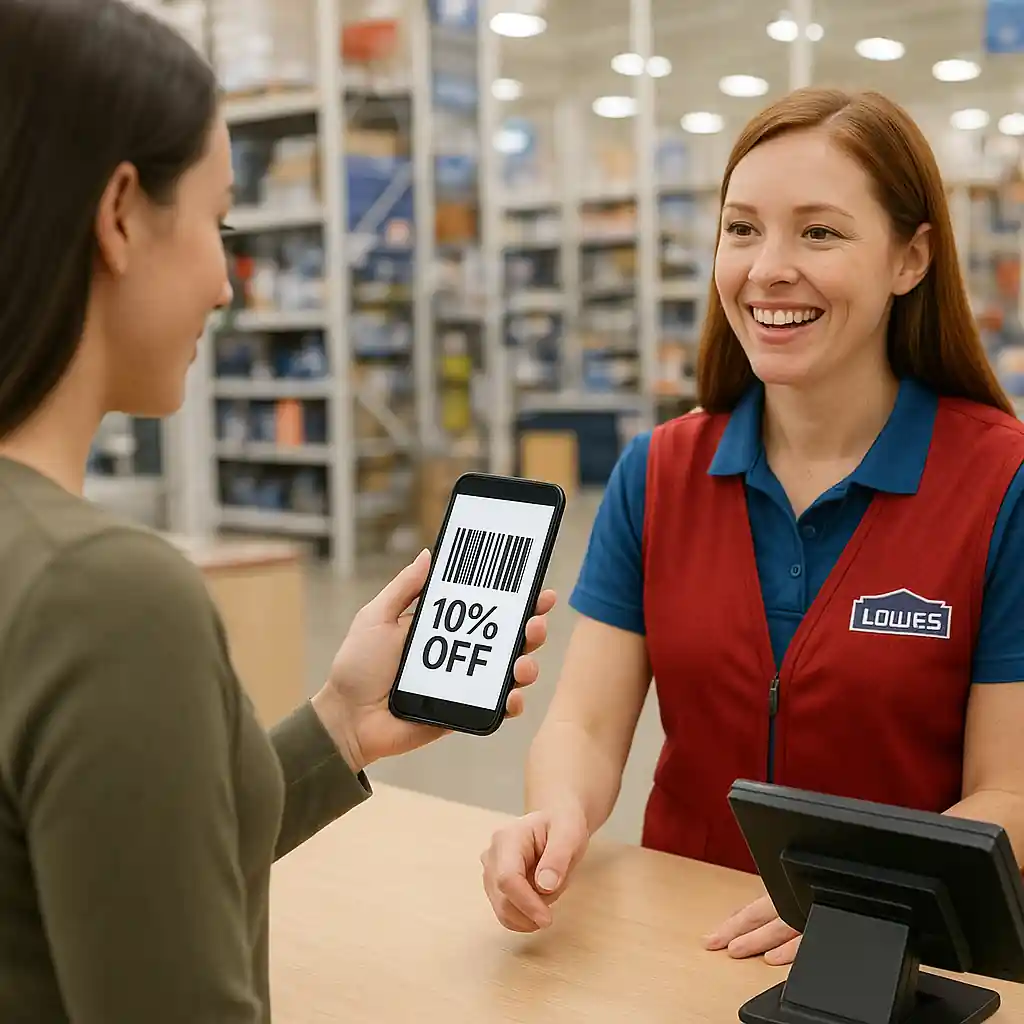
Quick Checklist
- Confirm the promo’s redemption type: online-only, in-store, or both.
- Save any emailed or app-issued code and screenshot it in case of display issues.
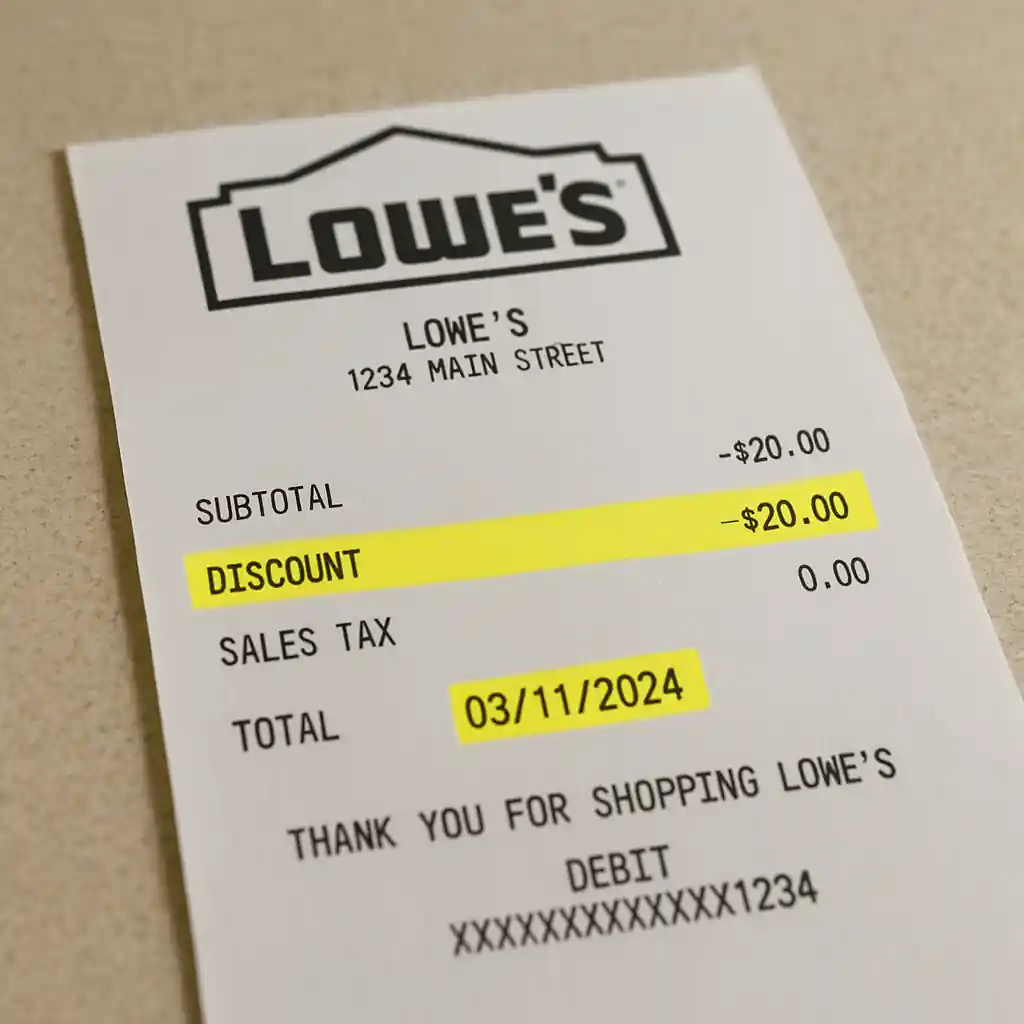
- Bring the purchase receipt (digital or printed) when asking for a post-sale adjustment.
- For in-store use, add the code to your mobile wallet or print the coupon if required.
- Ask the cashier to manually apply the code only if the barcode or code field fails.
- Check the cart rules: some codes exclude appliances, gift cards, or special-order items.
- If using curbside pickup, confirm whether the promo applies to pickup orders on the product page.
- When in doubt, show the official Lowe’s terms on Lowes.com to the associate.
How Lowe’s Applies Promo Codes: Key differences
Understanding where discounts are validated helps avoid embarrassment at checkout. In 2026, Lowe’s generally enforces three validation paths: online promo codes (entered at checkout), app-based offers (tied to your account or barcode), and in-store coupons (printable codes, verbal codes, or barcodes scanned at register). Each path has different rules for stacking, exclusions, and manual overrides.
Online codes require the code to be entered into the coupon or promo field during payment; if the cart contains excluded items the code will reject automatically. App offers can be tied to your MyLowe’s account and may auto-apply when signed in; they often require barcode scanning at pickup or showing a digital coupon to a cashier. In-store printed or verbal codes usually rely on a barcode scan or manual entry by the register operator.
When a store must manually apply a discount
Cashiers can manually apply a promo only when:
- The code is valid for in-store redemption and not restricted to online-only.
- The register allows manual entry for that promo type (some system-level codes are blocked).
- The associate verifies the coupon’s terms—showing the on-screen terms or a printed copy helps.
Always ask politely for a manager if the cashier cannot see the code field or lacks permission to apply a manual override.
Step-by-step: Redeeming in Store
In-store redemption involves proof and sometimes human intervention. Follow this flow to keep the checkout fast and successful.
- Step 1 — Confirm in-store eligibility: read the coupon terms for wording like “in-store only” or exclusions for categories such as appliances or gift cards.
- Step 2 — Prepare proof: save the digital coupon screenshot or print the code. If you have an emailed promo, open it and show the associate the full message.
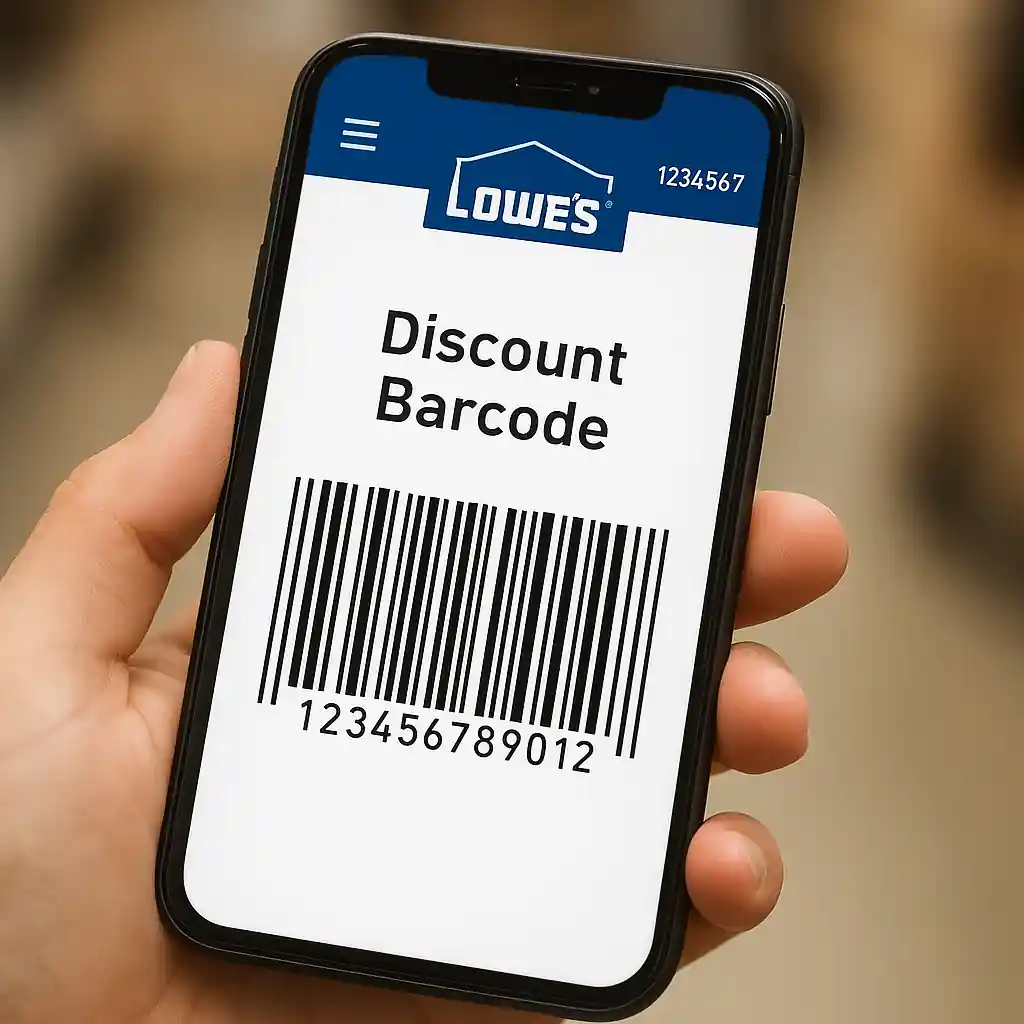
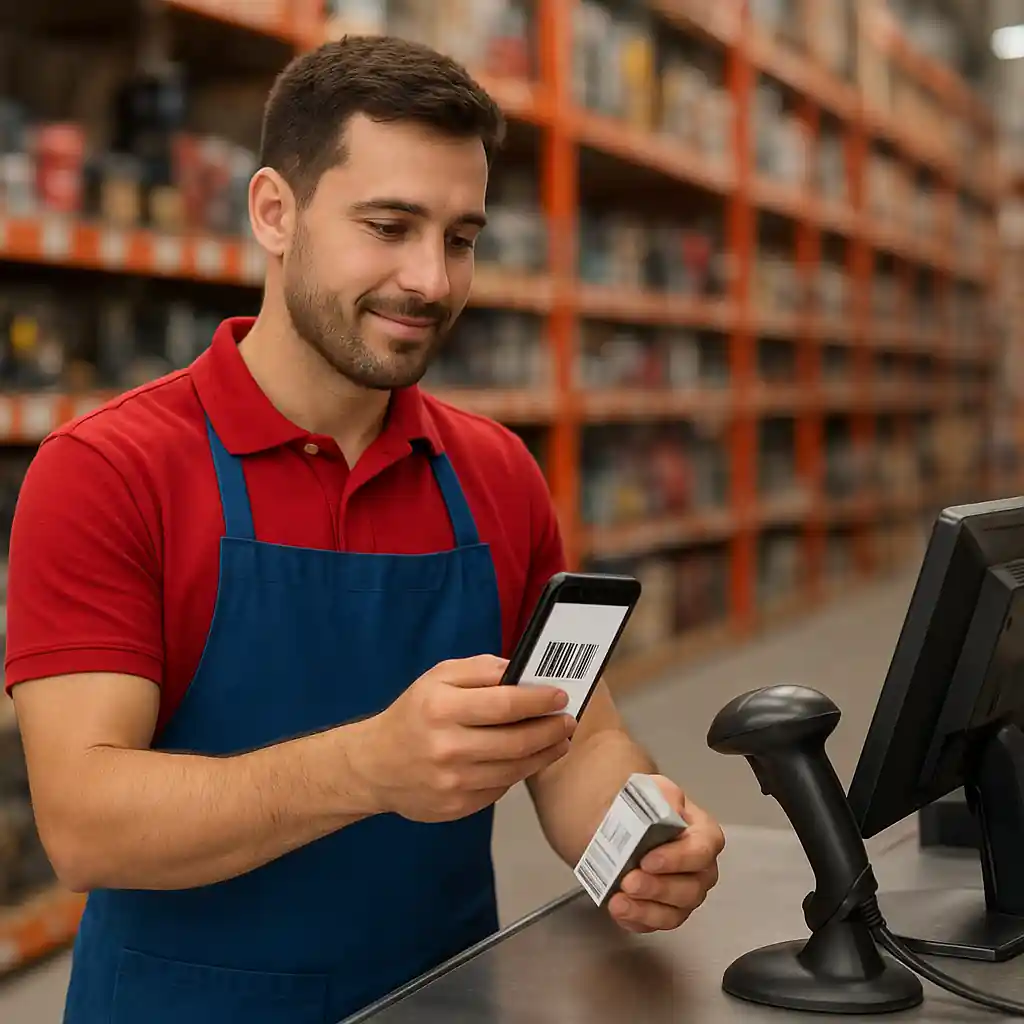
- Step 3 — At the register: present the coupon barcode or code before the cashier rings the last item. Scanning a printed barcode avoids manual entry errors.
- Step 4 — If scanning fails, ask the associate to manually enter the code into the register’s coupon field or perform a manager override if required.
- Step 5 — Keep the receipt: it shows the applied discount and is required for any post-sale price adjustment questions.
If the register denies application because an item is excluded, politely request to move excluded items to a separate transaction so the promo can apply to qualifying items only.
Common in-store scenarios
- Verbal codes: some promo staff issue a verbal code to use at checkout — ask the cashier to type it into the coupon field or call a manager for approval.
- Employee-applied discounts: associates can apply employee or special discounts, but store policy controls whether these stack with manufacturer or store promos.
- Mobile wallet coupons: show the barcode in your phone’s wallet and request the cashier scan it directly to speed processing.
Step-by-step: Redeeming online and in the app
Online redemption reduces human error but has its own rules. Use this flow when you shop on Lowes.com or through the Lowe’s app.
- Step 1 — Sign in: log into your MyLowe’s account to allow app-specific offers to appear and auto-apply when eligible.
- Step 2 — Add items to cart and review exclusions on product pages (look for coupon icons or terms).
- Step 3 — At checkout, enter the promo code in the designated promo/coupon box and click Apply. Watch the order summary update to show the discount.
- Step 4 — If the code fails, clear cookies, try a different browser or the app, and re-enter the code. Sometimes caching prevents the discount from appearing.
- Step 5 — For pickup orders, verify whether the promo notes “applies to pickup” or “online only” before completing checkout; if the promo applies but disappears, contact Lowe’s customer service and keep the order confirmation.
When using the app, allow push notifications for time-limited offers and pull up the barcode in your account for in-store scanning when pickup requires verification.
Common Mistakes
- Assuming online codes will auto-apply in store—many online-only codes explicitly exclude in-store redemption.
- Presenting a screenshot without expanding the full coupon terms—associates may need to read validity dates or SKU exclusions shown in the full message.
- Waiting until after the register totals to mention a code—associates are less likely to void and redo a full transaction than to apply a promo during checkout.
- Trying to use a manufacturer rebate code as a store promo—rebates and store coupons operate on different systems and rarely stack automatically.
- Not splitting a cart when part of the order is excluded—this prevents the promo from applying to qualifying items only.
- Printing a barcode at poor resolution—the register scanner may not read low-quality prints, so bring a clear screenshot if possible.
- Assuming curbside or delivery orders always accept in-store coupons—many pickup/delivery flows treat the order as an online transaction with different coupon rules.
- Failing to retain the receipt or order confirmation—without it you have little proof to request a price adjustment if the code should have applied.
Related Guides
- Lowes promo code 2026: main guide — the hub with the full overview of available Lowe’s coupons, eligibility, and where to find verified codes.
- Using Lowe’s promo code in-store — deeper practical tips for mobile wallet, printing, and cashier interactions when redeeming offers at register.
For issues that look like consumer-rights problems (for example, misleading coupon terms), see resources at FTC.gov for guidance on deceptive promotions.
Conclusion
Redeeming a lowes promo code 2026 is straightforward if you match the code type to the correct redemption path and bring proof. In-store redemptions often depend on barcode scans or a manager override, while online/app codes require the promo field at checkout or an account-linked offer.
Next step: review the full Lowe’s promo hub to confirm current code eligibility and terms before your purchase.