
This page walks you through the exact checkout flow where a Home Depot promo code belongs and why placement matters. You will learn the difference between cart-level and product-level codes, how to enter codes for regular and Pro accounts, and practical fixes when a code rejects.
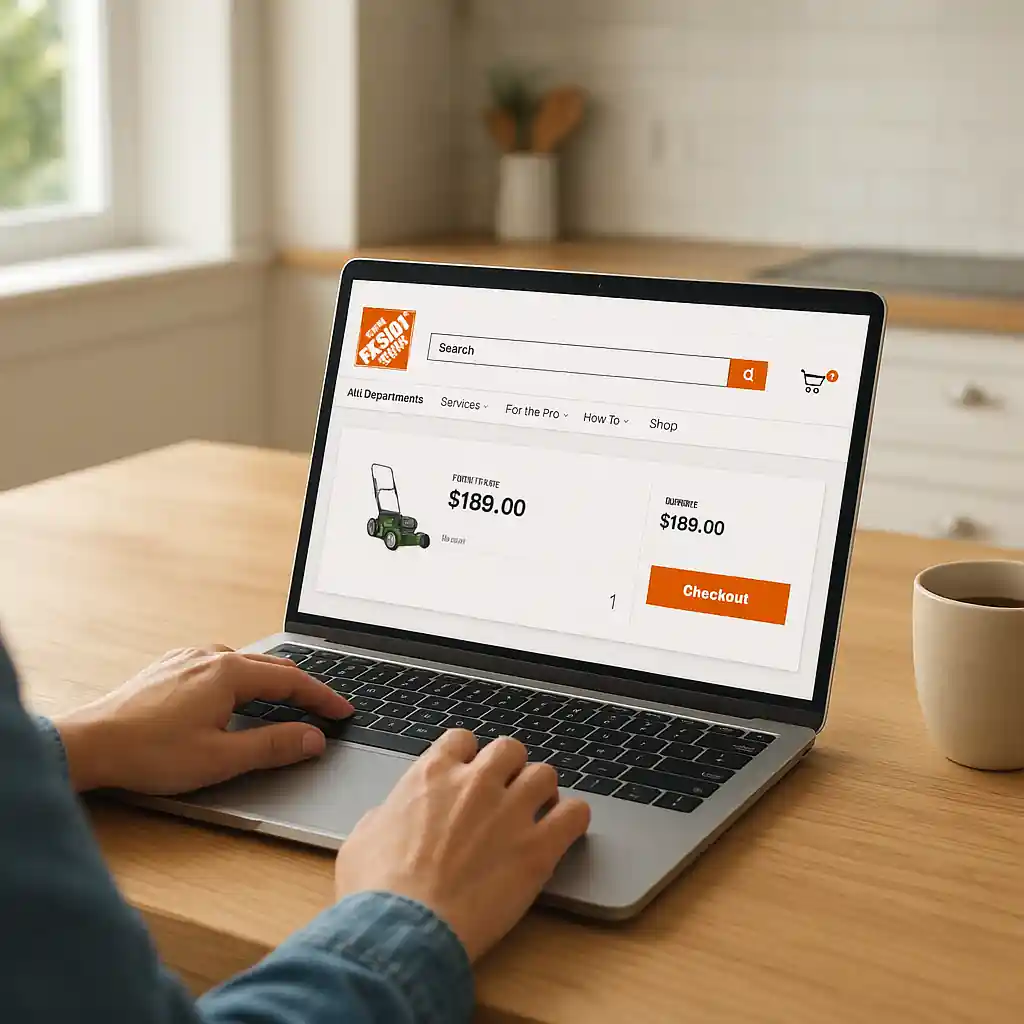
Follow the step-by-step flows below the first time you redeem a code so you don’t lose savings at the last second. This guide focuses narrowly on checkout placement and entry; for the full list of current coupons and all ways to save, see our main Home Depot promo code hub.
Scope Boundary: This guide focuses on where and how to enter codes during Home Depot checkout; it does NOT list live codes or act as a master savings page.
Quick Checklist
- Start on the cart page — add all items and confirm quantities before applying a code.
- Look for the promo-code field on the cart or the final payment step — don’t assume product pages are the place.
- Distinguish cart-level vs product-level discounts: try cart entry first for site-wide promos.
- Sign into your Home Depot account (or Pro Xtra) before checkout so membership discounts apply correctly.
- Remove browser autofill and clear cached promo fields if a code keeps rejecting.
- Confirm exclusions (appliances, gift cards, services) on Home Depot’s help pages before you start.
- If you see “promo not found,” verify there are no extra spaces or hidden characters in the code.
- Take a screenshot of your cart and reach out to Home Depot support only after you’ve tried the steps below.
Where to Enter a Home Depot Promo Code in Checkout
The Home Depot checkout typically accepts codes in one of two places depending on the promotion: a cart-level promo field or an item-level discount entry. Knowing which to use avoids the common “code accepted but no discount” confusion.
Cart-level (recommended first)
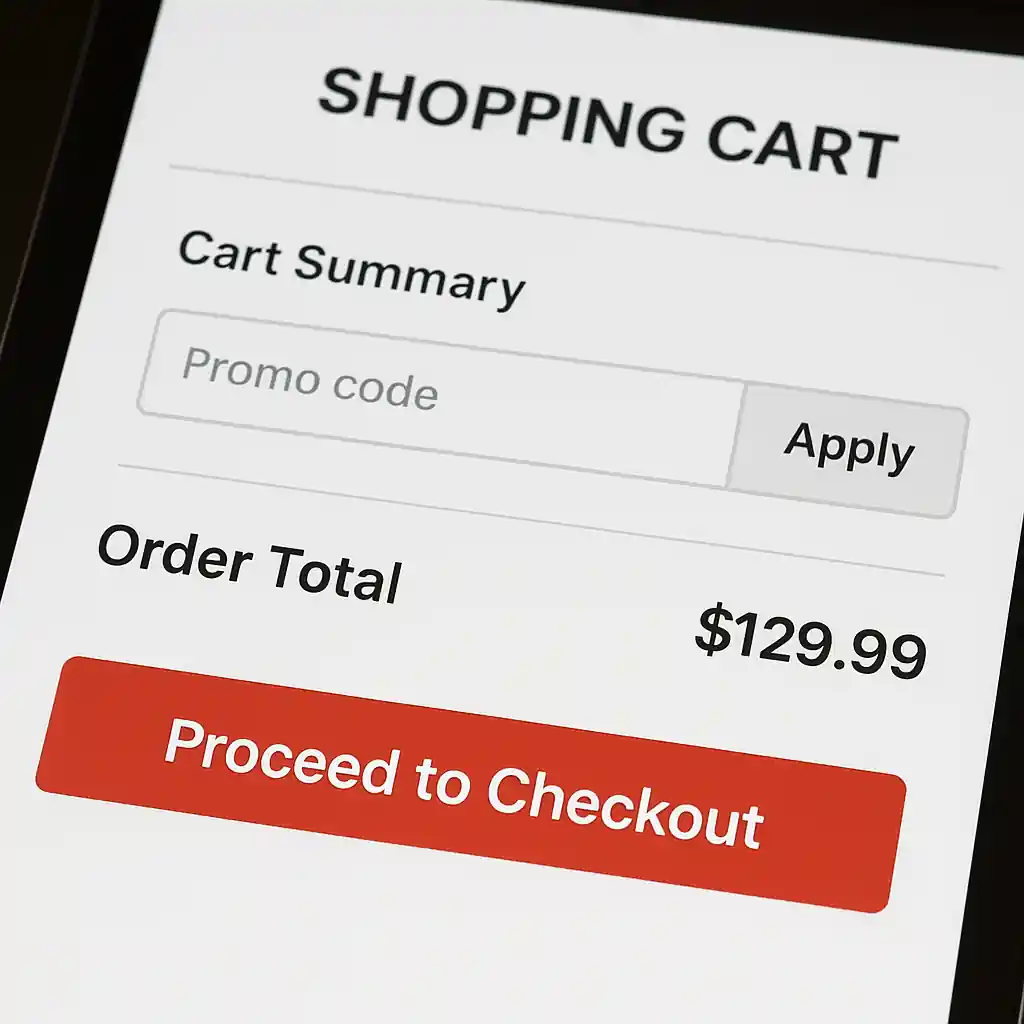
Most online promo codes are cart-level — they apply to the subtotal and must be entered on the cart or payment screen. Follow this flow:
- Step 1: Add items to your cart and click View Cart.
- Step 2: Review quantities, remove ineligible items, and confirm the subtotal.
- Step 3: Find the “Promo code” or “Enter promo code” field (usually under the order summary).
- Step 4: Paste the code, click Apply, and watch for the discount line item to appear.
If the discount line appears immediately, you’re good to continue to shipping and payment. If nothing changes, do not immediately assume the code is bad — follow the troubleshooting steps in the Common Mistakes section.
Item-level / Product coupons
Some offers attach to a specific SKU and must be redeemed on the product page or by adding the special SKU to cart. These are less common for general promo codes but common for manufacturer rebates and printable coupons.
- Tip: Read the offer fine print to see if a barcode or printable must be presented in-store.
- When a code points to a product-level promo, the product page usually shows an automatic discount or a separate “Apply promo” checkbox.

Cart-level vs Product-level Codes: How to Decide
Choosing the correct placement depends on the promo description. Use this quick decision flow:
- If the offer headline says “sitewide,” “cart,” or “order discount,” use the cart-level promo field.
- If it names a brand, SKU, or model number, double-check the product page or the offer terms.
- If the promotion is a printable coupon or in-store print-and-bring, it likely won’t work online.
Step-by-step validation before checkout:
- Step 1: Read the promo terms for exclusions or minimums (for example, “$20 off $100”).
- Step 2: Confirm your cart meets any minimums and exclude restricted items like gift cards.
- Step 3: Enter the code in the cart-level field and verify the discount appears before entering payment.
Pro Accounts and Pro Xtra: Entering Codes & Membership Discounts
Pro Xtra members and contractors sometimes see different pricing. To ensure codes and Pro pricing stack correctly, sign into the Pro account before you begin shopping.
- Sign in at the top of the site to load Pro pricing into the cart.
- Confirm Pro discounts appear on items before applying an additional promo; some Pro pricing is already the lowest price and will not accept extra stackable coupons.
- If a promo is intended for Pro accounts, the cart-level field will typically accept it, but the final order summary will list both savings lines separately when they stack.
For contractor or volume-pricing questions, consult Home Depot’s Pro resources directly at Home Depot Pro Xtra or the customer service pages to confirm account-specific rules.
Quick Troubleshooting Flow
- Trim whitespace: retype or paste the code into a plain-text editor and then paste again to avoid invisible characters.
- Use an incognito window: sometimes extensions or cached values interfere with code validation.
- Remove ineligible SKUs: take out large appliances, gift cards, or special-order items and try again.
- Try a different payment step: enter the promo on the cart page, then proceed to payment to force validation.
- Contact support with screenshots only after you’ve tried the above steps and documented the issue.
Common Mistakes
- Entering the code on the product page when the offer is cart-level — the discount never appears because the cart validation was skipped.
- Assuming all promo fields stack — some Pro pricing or manufacturer discounts cannot be combined with store promo codes.
- Not signing into a Pro or registered account first, which can hide account-specific promos or prevent stacking.
- Trying printable or in-store-only coupons in the online cart — these are rejected even if the code matches a promotion name.
- Pasting extra characters or a trailing space into the promo field, causing an immediate “invalid code” message.
- Leaving ineligible items (like excluded brands or services) in the cart which block the whole cart-level discount from applying.
- Forgetting to check shipping/pickup options — some promos only apply to in-store pickup or exclude delivery fees, changing the expected discount.
- Waiting until the final payment screen to apply a code — if the site revalidates items, the code may drop out if cart contents change.
Related Guides
For broader context and troubleshooting beyond checkout placement, see these detailed guides:
- Home Depot promo code (hub guide) — our main hub for Home Depot promo rules, which covers all types of coupons and where to find legitimate offers.
- How to Use a Home Depot Promo Code at Online Checkout — a step-by-step desktop and mobile flow that complements this placement-focused seed guide.
- Why Most Home Depot Promo Code Offers Fail — troubleshooting and verification tactics if a code keeps rejecting at checkout.
Conclusion
Applying a Home Depot promo code successfully is mostly about placement and order validation: use the cart-level field for sitewide promos, confirm product-level rules when required, and sign into Pro accounts first so membership pricing and codes interact correctly. If a code doesn’t work, follow the cleaning, re-entry, and exclusion checks above before contacting support.
Next step: if you want the broader context and verified offers, visit our main hub for Home Depot promo code tips and full saving strategies.